Connect an AI assistant
This article walks through connecting an AI coding assistant (Claude Code, GitHub Copilot, or OpenAI Codex) to your Casewhere instance through the MCP server. The quickest path is to Download the AI Workspace, which produces a ready-to-use project folder with the connection already configured — by default using browser login, so no credential is stored in any file.
sequenceDiagram
    participant U as You (Casewhere Admin)
    participant A as AI assistant
    participant M as MCP server
    participant C as Your Casewhere instance
    U->>A: Download AI Workspace (instance URL pre-filled)
    A->>M: MCP request to <base>/<instance>/mcp
    M->>U: Browser login on first use
    U-->>M: Sign in to your instance
    M->>C: Proxied Admin API call (as you)
    C-->>M: Result
    M-->>A: Tool result
Enable AI Integration (administrator)
AI Integration is off by default. An administrator enables it on the Casewhere Admin (configuration) site through these application settings:
| App setting | Value | Effect |
|---|---|---|
ai:EnableAI |
true |
Shows the AI Integration panel on the Admin home page and enables the token endpoints |
ai:McpBaseUrl |
The shared MCP server base URL, e.g. https://mcp-local.casewhere.com/ |
The base the generated configuration points at (the /<instance>/mcp path is appended automatically) |
ai:McpName |
An optional server key, e.g. casewhere-prod (defaults to casewhere) |
Names the MCP server entry in the generated configs, so servers from different Casewhere deployments don't collide in the same assistant. Shown as the MCP Server Name field |
These are standard application settings on the configuration web site (set in Web.config, or through your on-premise deployment settings). Until ai:McpBaseUrl is set, generated configs contain a <REPLACE_WITH_MCP_SERVER_URL> placeholder, and the MCP Base URL field shows "Not configured".
The AI Integration panel
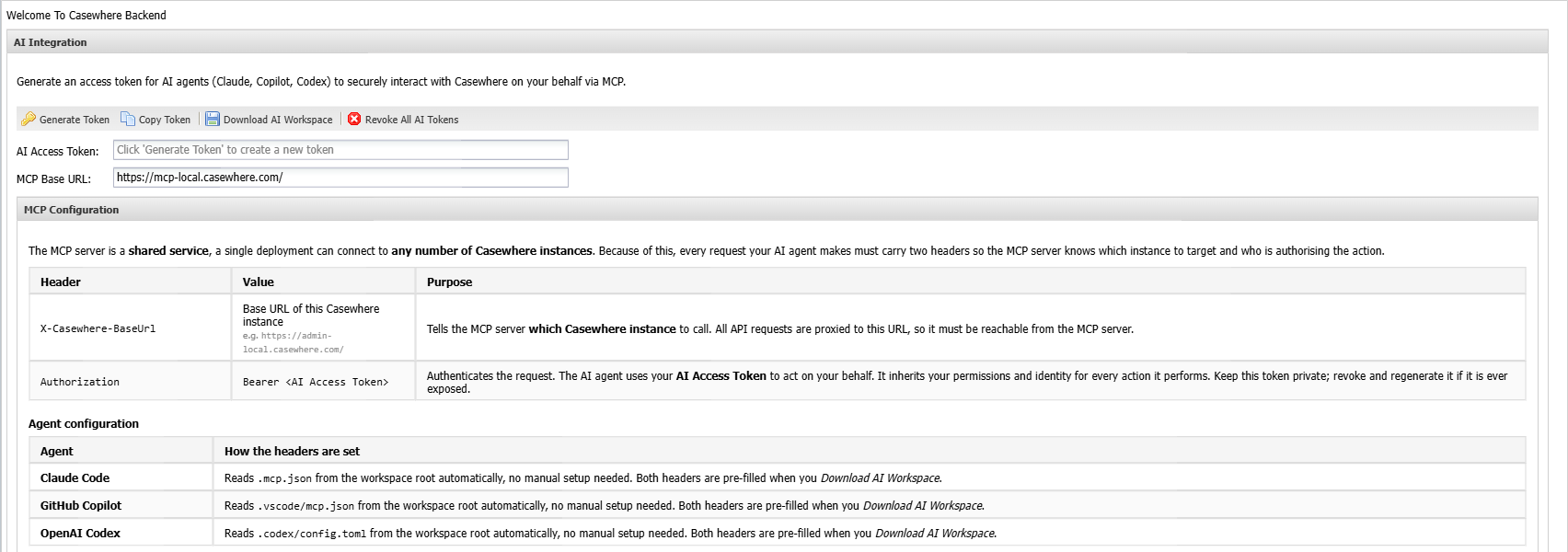
When AI Integration is enabled, the Casewhere Admin home page shows the AI Integration panel. It reports the configured MCP Base URL and MCP Server Name, and its toolbar is where you set up an assistant:
- Download AI Workspace (browser login) — the recommended path. Downloads a ready-to-use workspace whose configuration contains no token; the assistant signs you in through the browser on first use.
- Download AI Workspace (with token) — downloads the same workspace with a 30-day token embedded, for clients or environments that cannot run the browser login.
- Generate Token / Copy Token — create a personal AI Access Token (shown masked in the AI Access Token field) and copy it, for configuring an assistant by hand. The token acts on your behalf with your permissions — treat it like a password.
- Revoke All AI Tokens — immediately invalidates every token you have issued.
Download the AI Workspace (recommended)
Click Download AI Workspace (browser login) to download casewhere-ai-workspace.zip — a ready-made workspace with the connection already configured and no token stored in any file. (Use Download AI Workspace (with token) instead only when your client cannot run the browser login; it embeds a 30-day token.)
| File | Used by | Notes |
|---|---|---|
.mcp.json |
Claude Code | Picked up automatically when the folder is opened |
.vscode/mcp.json |
GitHub Copilot | Picked up automatically when the folder is opened in VS Code |
.codex/config.toml |
OpenAI Codex | MCP server entry for Codex |
AGENTS.md (plus CLAUDE.md and Copilot instructions) |
All assistants | Instructs the assistant to bootstrap the Casewhere knowledge pack and follow platform conventions before creating or editing resources |
Each config file is pre-filled with the MCP server URL for this instance — the <instance> segment is encoded into the URL, so there is no base-URL header to set. The browser-login download stores no credential; the with-token download adds a single Authorization: Bearer header. Extract the zip anywhere and open the folder in your assistant.
The with-token workspace embeds a live token — keep those files private and do not commit them to a shared repository. When the token expires, download the workspace again and replace your config files. The browser-login workspace has no embedded secret; you simply re-authenticate in the browser when the session expires.
Open the workspace in your assistant
| Assistant | What to do |
|---|---|
| Claude Code (CLI or VS Code extension) | Open the workspace folder; Claude Code reads .mcp.json automatically. For an existing project, copy .mcp.json into your project root. |
| GitHub Copilot (VS Code) | Open the workspace folder in VS Code (1.99+). The .vscode/mcp.json config is picked up automatically. Switch Copilot Chat to Agent mode to use MCP tools. |
| OpenAI Codex | Copy the values from .codex/config.toml into Codex Settings → MCP Servers → Add server, or append them to your ~/.codex/config.toml (on Windows, C:\Users\<your-username>\.codex\config.toml) and restart Codex. Open the workspace folder so Codex picks up AGENTS.md. |
Configure manually (alternative)
If you prefer not to use the AI Workspace, add the MCP server to your assistant by hand. Replace <MCP Base URL> with the value shown in the MCP Base URL field and <instance> with the encoded instance segment for your Casewhere instance (the easiest way to get it is to download the workspace once and copy the url). Each config defines two servers: your instance's authoring server and a public casewhere-learn server that carries the knowledge-pack bootstrap tool. Include the headers block only if you use a token; for browser login, omit it entirely.
Claude Code — .mcp.json:
{
  "mcpServers": {
    "casewhere": {
      "type": "http",
      "url": "<MCP Base URL>/<instance>/mcp",
      "headers": {
        "Authorization": "Bearer <AI Access Token>"
      }
    },
    "casewhere-learn": {
      "type": "http",
      "url": "<MCP Base URL>/learn/mcp"
    }
  }
}
GitHub Copilot — .vscode/mcp.json (note the root key is servers, not mcpServers):
{
  "servers": {
    "casewhere": {
      "type": "http",
      "url": "<MCP Base URL>/<instance>/mcp",
      "headers": {
        "Authorization": "Bearer <AI Access Token>"
      }
    },
    "casewhere-learn": {
      "type": "http",
      "url": "<MCP Base URL>/learn/mcp"
    }
  }
}
OpenAI Codex — config.toml:
[mcp_servers.casewhere]
url = "<MCP Base URL>/<instance>/mcp"
http_headers = { Authorization = "Bearer <AI Access Token>" }

[mcp_servers.casewhere-learn]
url = "<MCP Base URL>/learn/mcp"
For browser login, remove the
headersblock (Claude / Copilot) or thehttp_headersline (Codex) — the assistant signs you in through the browser instead. The server key (casewhere) matches the MCP Server Name field; set theai:McpNameapplication setting to change it when you connect to more than one Casewhere deployment.
Verify the connection
Ask your assistant to ping Casewhere (this calls the PingCasewhere tool). It returns the targeted backend URL and whether the connection is healthy. A successful ping confirms the MCP server is reachable, the base URL is correct, and your token is valid.
Token lifetime and rotation
- Browser login — no token is stored, so there is nothing to rotate. When your sign-in session expires, the assistant simply prompts you to sign in again.
- Expiry (with token) — tokens last 30 days. When a token expires, the assistant's calls stop being authorized. Download the workspace again (or click Generate Token) and update your config.
- Rotation / leaks — if a token is ever exposed, click Revoke All AI Tokens and generate a new one. Revocation is immediate and cannot be undone.
- Identity — every action is performed as you. Review what an assistant proposes before letting it run changes against a shared environment.
Next: Working with MCP tools.