Product management
In Casewhere, a product serves as the top-level resource of a solution, providing a centralized location to contain all solution artifacts. Products are managed through the Products function, accessible from the Products menu on the left panel of the Casewhere Admin. This page allows users to create, edit, search, import, and export products.

Create a product
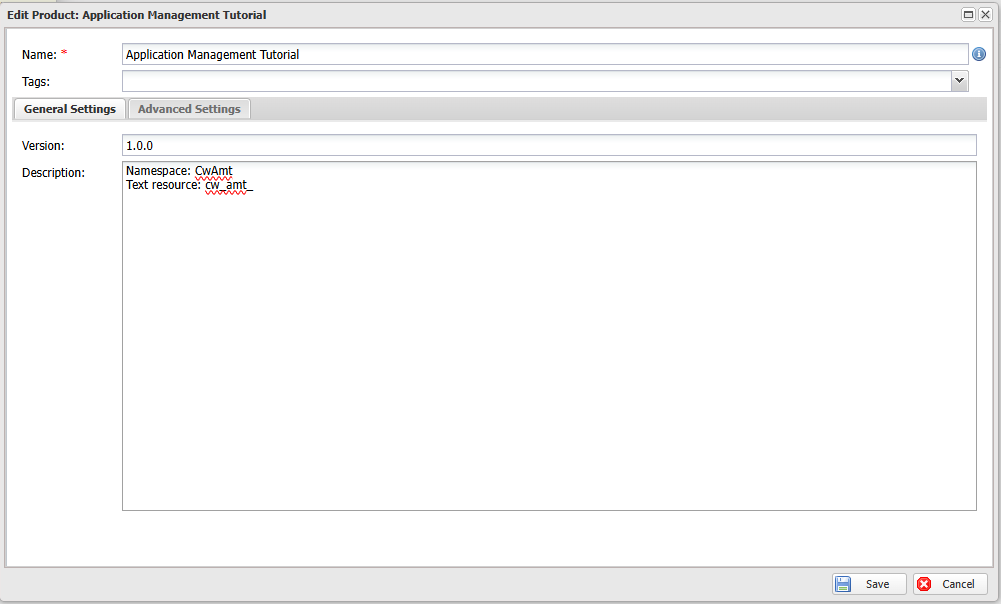
To create a new product, click the Create button on the toolbar and enter the following information:
- Name: Name of the product.
- Tags: Tags used to categorize and search for the product.
- General Settings
- Version: Version of the product.
- Description: Description of the product.
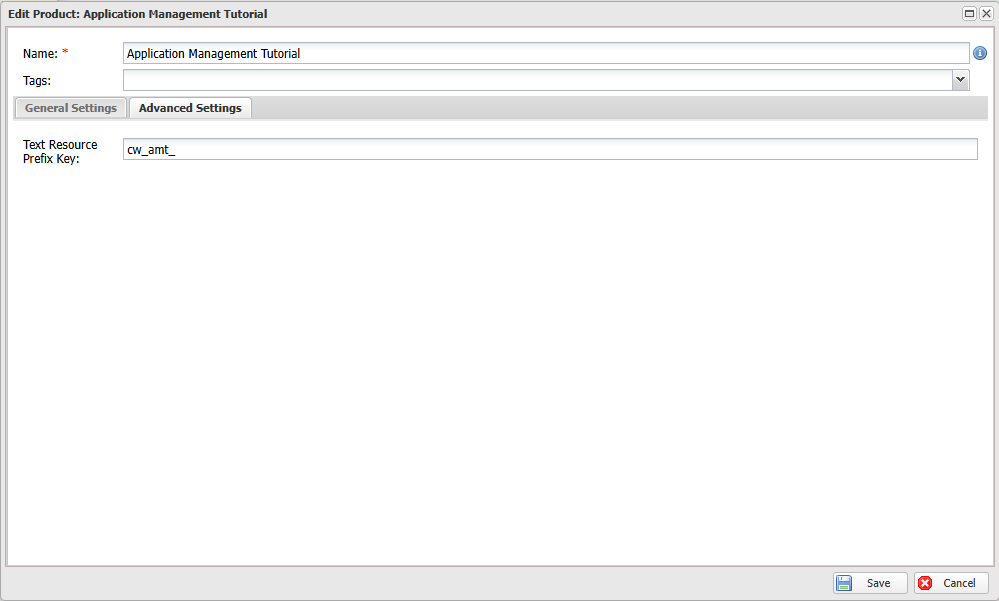
- Advanced Settings
- Text Resource Prefix Key: The prefix will be appended to all text resources associated with this product.
Working with products
Organizing resources and artifacts using Products simplifies management, packaging, and deployment. Therefore, when creating solution resources, it is important to specify the product to which those resources belong.
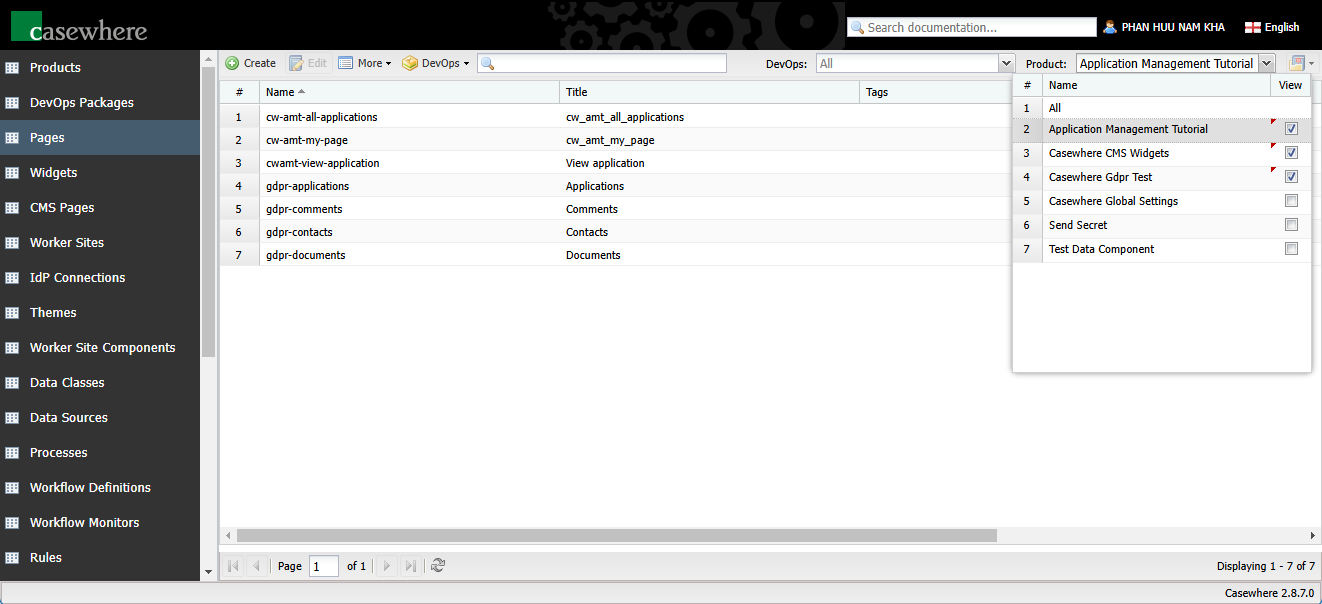
To specify a product for a resource, select the product name from the Product combo box in the top-right corner. Once a product is selected, all newly created resources will automatically be associated with that product. Note that you can choose to View multiple products simultaneously, but only one product can be set as the active product in your workspace.
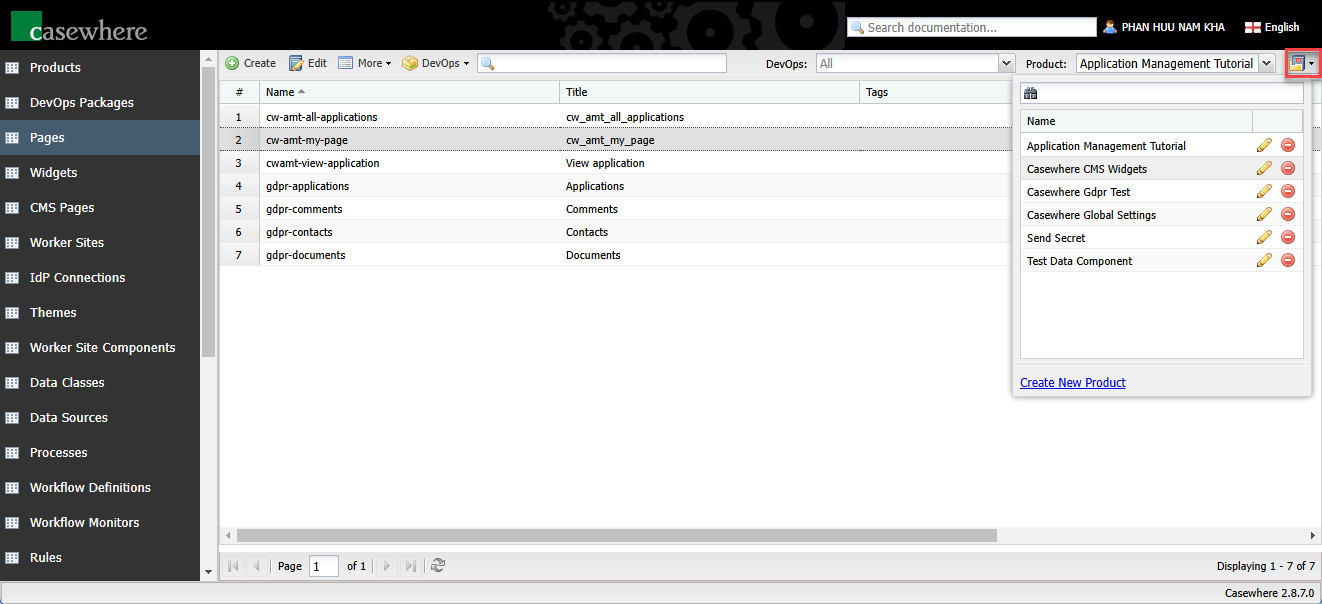
You can also manually add a resource to a product if a product was not previously selected. To do this:
- Select the resource.
- Click the Move to product icon
 .
. - Choose the product name from the list or use the search function to find the product.
Import and export products
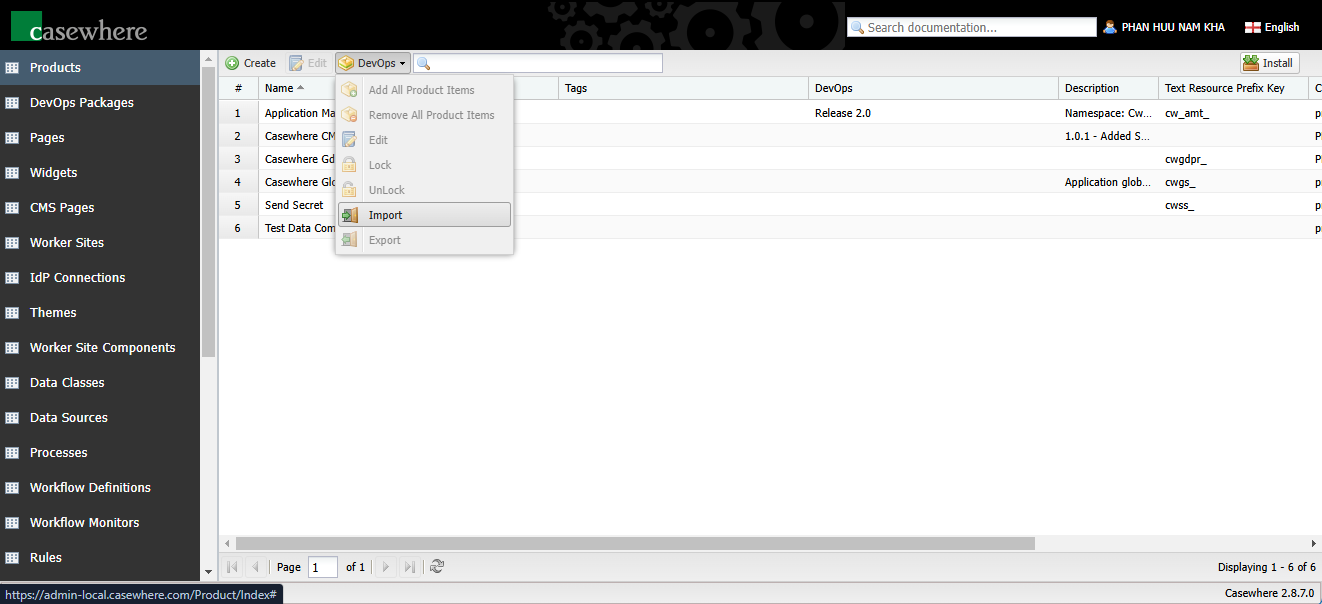
In the Products page, do the following steps to import a product:
- Use the menu DevOps / Import.
Select the product package to import. There are some options:
- Skip when an error occurs: By default, Casewhere will stop the import process when having an error while resolving the package. If this option is enabled, Casewhere will bypass the error package and continue the import process.
- Override text-resources key: If this option is enabled, when importing a product, if there is any text-resource existing with the same key, it will be replaced by the new one in the importing product.
- Force reload all worker sites: If this option is enabled, after importing a product, Casewhere will increase the version of worker sites, preventing resource caching
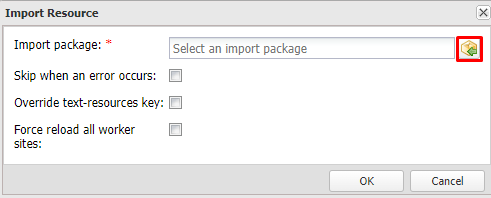
Click OK.
To export a product:
Select the product to be exported.
Use the menu DevOps / Export.
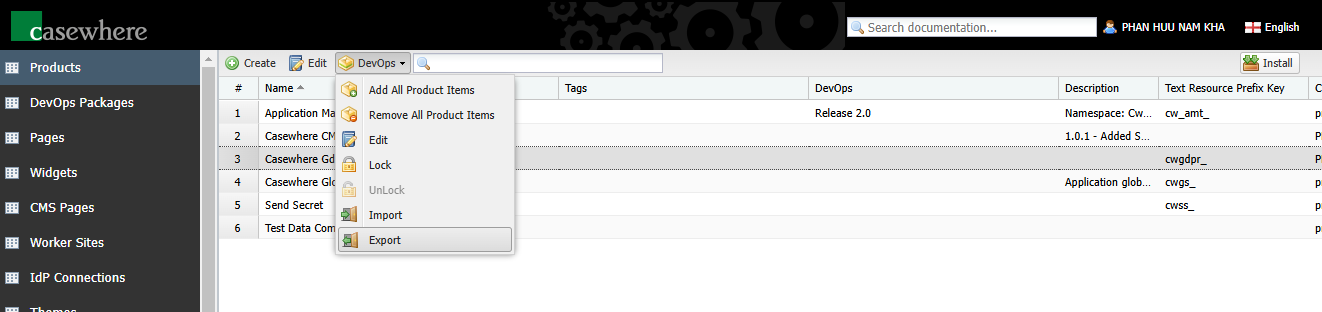
The product will be exported as a zip file and downloaded to the local machine.