Worker site authentication
Introduction
The Security Assertion Markup Language (SAML) protocol is an open-standard, XML-based framework for authentication and authorization between two entities without a password:
- Service provider (SP) agrees to trust the identity provider to authenticate users
- Identity provider (IdP) authenticates users and provides to service providers an authentication assertion that indicates a user has been authenticated
Casewhere is a service provider using SAML2.0 protocol to integrate with other IdP such as Safewhere, Azure Active Directory, and NemLog-in.
Configure Casewhere authentication with Safewhere Identify
Create IdP connection
- Login to Casewhere Admin
- Navigate to IdP Connections
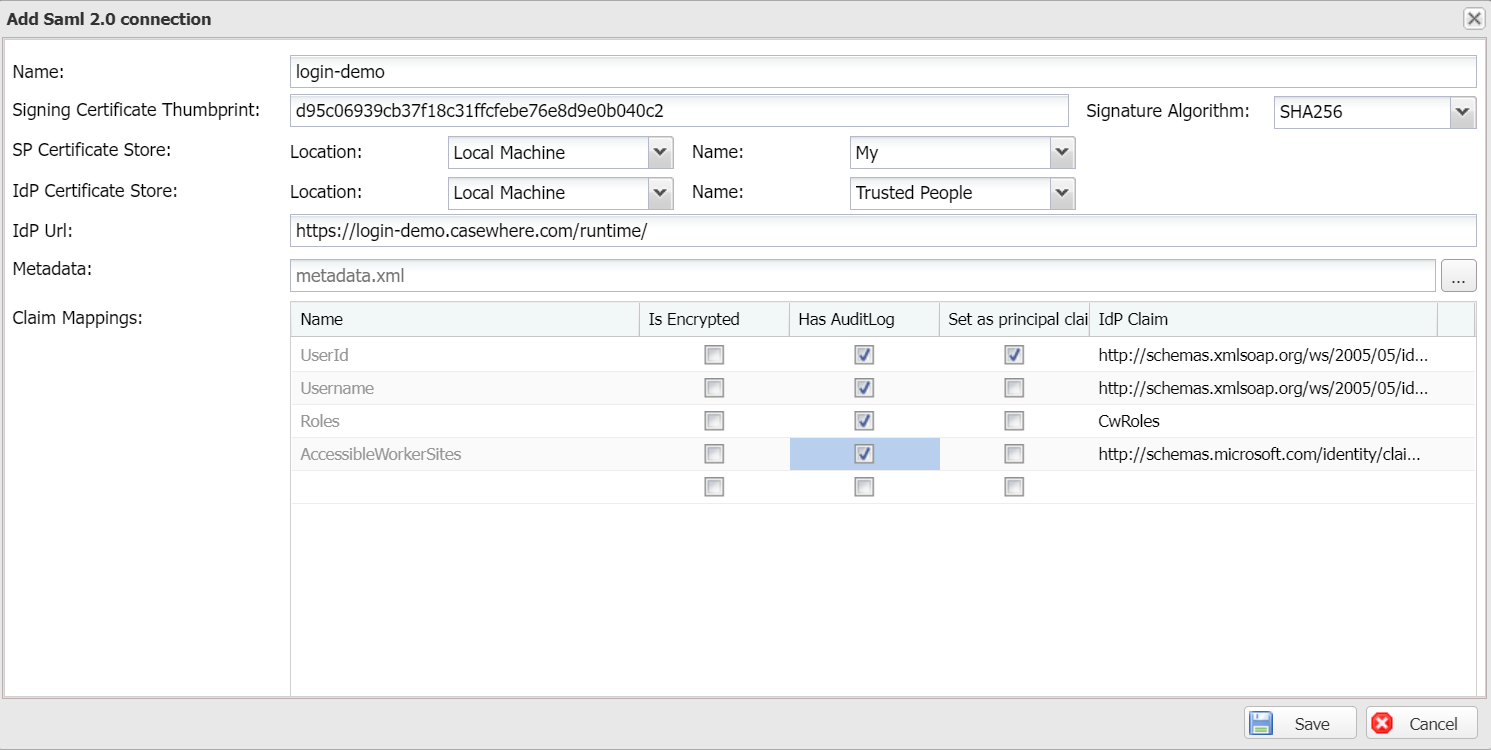
- Create a new Idp Connection with following settings:
- Name: The name of the connection. Example: login-demo
- Signing Certificate Thumbprint: The thumbprint of the connection's signing certificate. Example: d95c06939cb37f18c31ffcfebe76e8d9e0b040c2
- Signature Algorithm: The signing algorithm. Example: SHA256
- SP Certificate Store: The location and name of the service provider certificate store. Example: Local Machine/My
- IdP Certificate Store: The location and name of the IdP certificate store. Example: Local Machine/Trusted People
- IdP Url: The authentication endpoint. Example: https://login-demo.casewhere.com/runtime/
- Metadata: The metadata file from the IdP. For Safewhere Identify, you can download the metadata at https://login-demo.casewhere.com/runtime/saml2/metadata.idp
- Claim Mappings: Optional. Map the claims issued by the IdP to the claims Casewhere uses. For example, map an IdP claim to
AccessibleWorkerSitesto restrict which worker sites a user can access.
Configure authentication for worker site
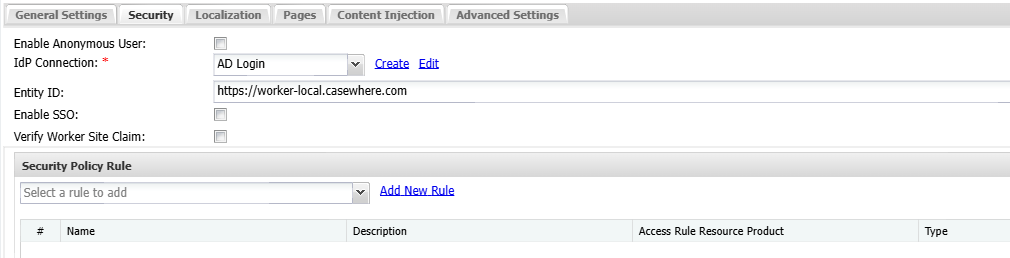
Navigate to Worker Sites, you can create a new worker site or select an existing to edit. Below are the required settings:
- Name: Name of the worker site. Worker site name must be unique
- Uri (called Domain Name before version 2.7): Specify the URI for your worker site, without the protocols (https://). Example: worker-local.casewhere.com
- Title: The title that appears on the browser window
- Theme: Select a theme for your worker site
- IdP Connection: Select the connection you created in the previous step
Create connection in Safewhere Identify
Login to Identify Admin and navigate to Connections.
Create a new SAML 2.0 protocol connection with following settings:
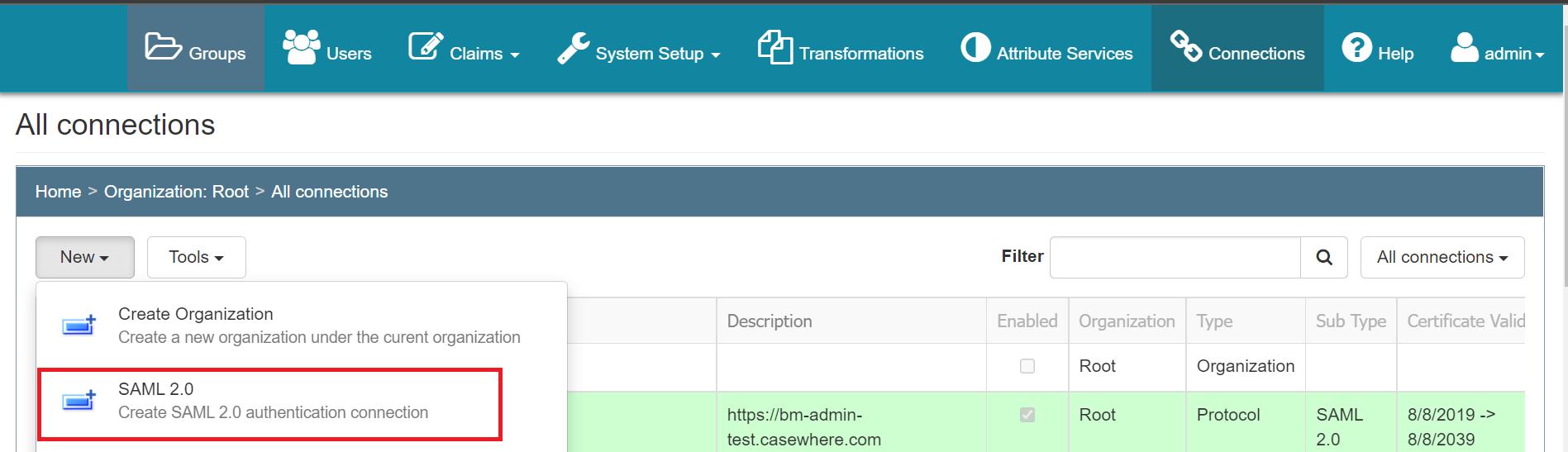
Name: The connection name must be unique. Example: [local]https://worker-local.casewhere.com
Enabled: We must have it checked for the connection to be used
Connection Dependency: Select the login methods you want to enable for this connection
Click Save & Close.
Download the worker site metadata from Casewhere using this link format [Worker Api URI]/metadata?worker=[your worker site URI]. For example https://api-local.casewhere.com/metadata?worker=worker-local.casewhere.com.
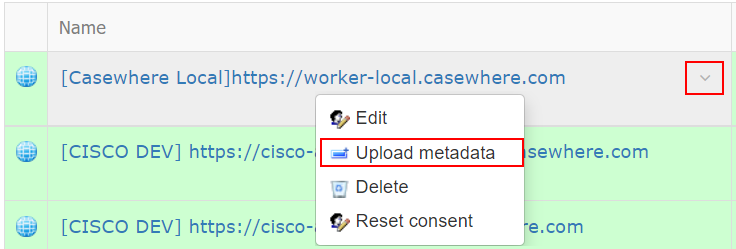
Navigate to the connection that you just created, from the inline menu and select Upload metadata:
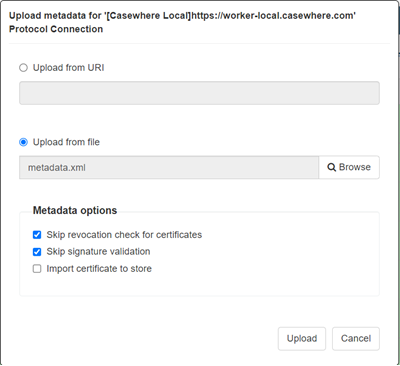
For development environments, you can skip revocation check for certificates and signature validation. It’s not recommended to do so for production environments.
Control access to the worker site
When Verify Worker Site Claim is enabled on the worker site's Security tab, a user can access the worker site only if their identity carries an AccessibleWorkerSites claim whose value matches the worker site URI. To produce this claim, add a Claim Mapping on the IdP Connection that maps the IdP claim carrying the user's accessible worker sites to the claim name AccessibleWorkerSites, then configure the IdP to issue that claim with one value per worker site URI the user is allowed to access.
For example, in Safewhere Identify you configure the IdP side as follows:
In Identify Admin, navigate to Claims
Add a discrete claim
- Claim type: the claim type you will map to
AccessibleWorkerSites, for example http://schemas.microsoft.com/identity/claims/tenantdomain - Friendly name: CW domains
- Options / Add new option: enter the worker site URI. For example https://worker-local.casewhere.com/
- Claim type: the claim type you will map to
In Identify Admin, navigate to Transformations and add a new transformation rule for your Connection
- Navigate to the discrete claim you just added, e.g., CW domains, and select the appropriate values
- Make sure you select appropriate Conditions for this new transformation rule
Alternatively, you can turn off Verify Worker Site Claim and use access rules to control access to your worker site instead. After turning it off, assign the relevant access rules to protect your worker site.
If the configuration is done correctly, when you visit the Casewhere worker site, you will be directed to Identify where you can enter your login credentials.