Application: Language
Introduction
In the Casewhere system, most projects are used by multinational and multilingual clients. To meet their needs, we created the Language component. It provides a way to manage multiple language packages, which you can import or export to different products.
Features
Manage language
The application provides two pages to manage languages and their settings.
Settings
The settings page is where users can configure language settings and generate default language data by clicking the Init button. All default languages are in a JSON file stored on the back-end site. If you click the Init button twice, the system clears all existing languages and regenerates the data. For this reason, use the initialization feature with care.
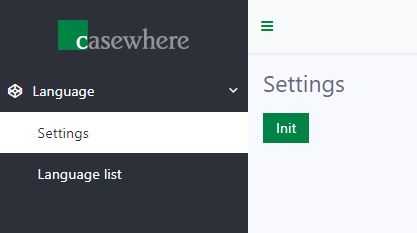
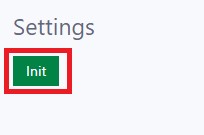
To initialize data on the settings page, click the Init button.
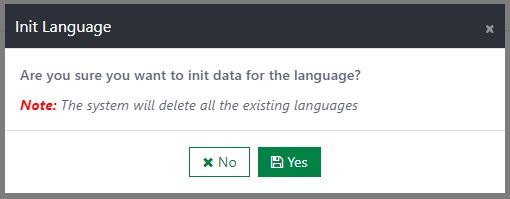
A Settings confirmation dialog then opens with two options: Yes/No.
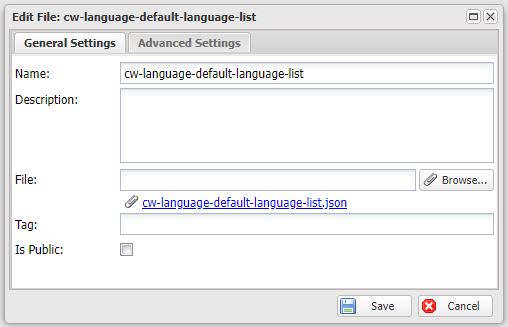
All default languages will be listed in the JSON file. You can modify their values based on your needs.
Language list
The Language list page is used to manage language data. On the Language list page, you can view all created languages, as well as add, edit, delete, import, and export the language data.
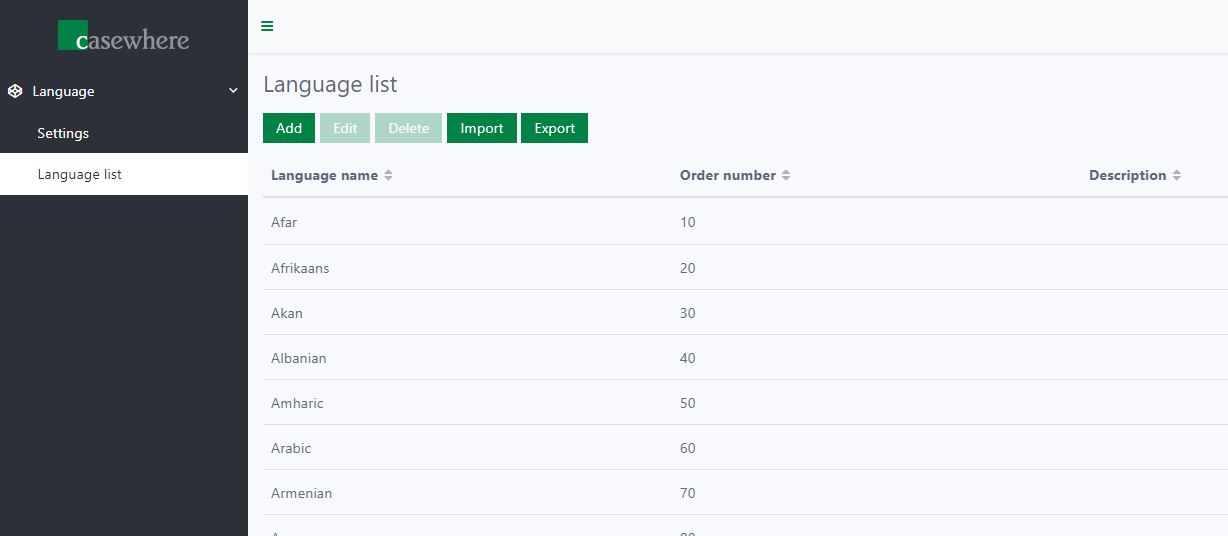
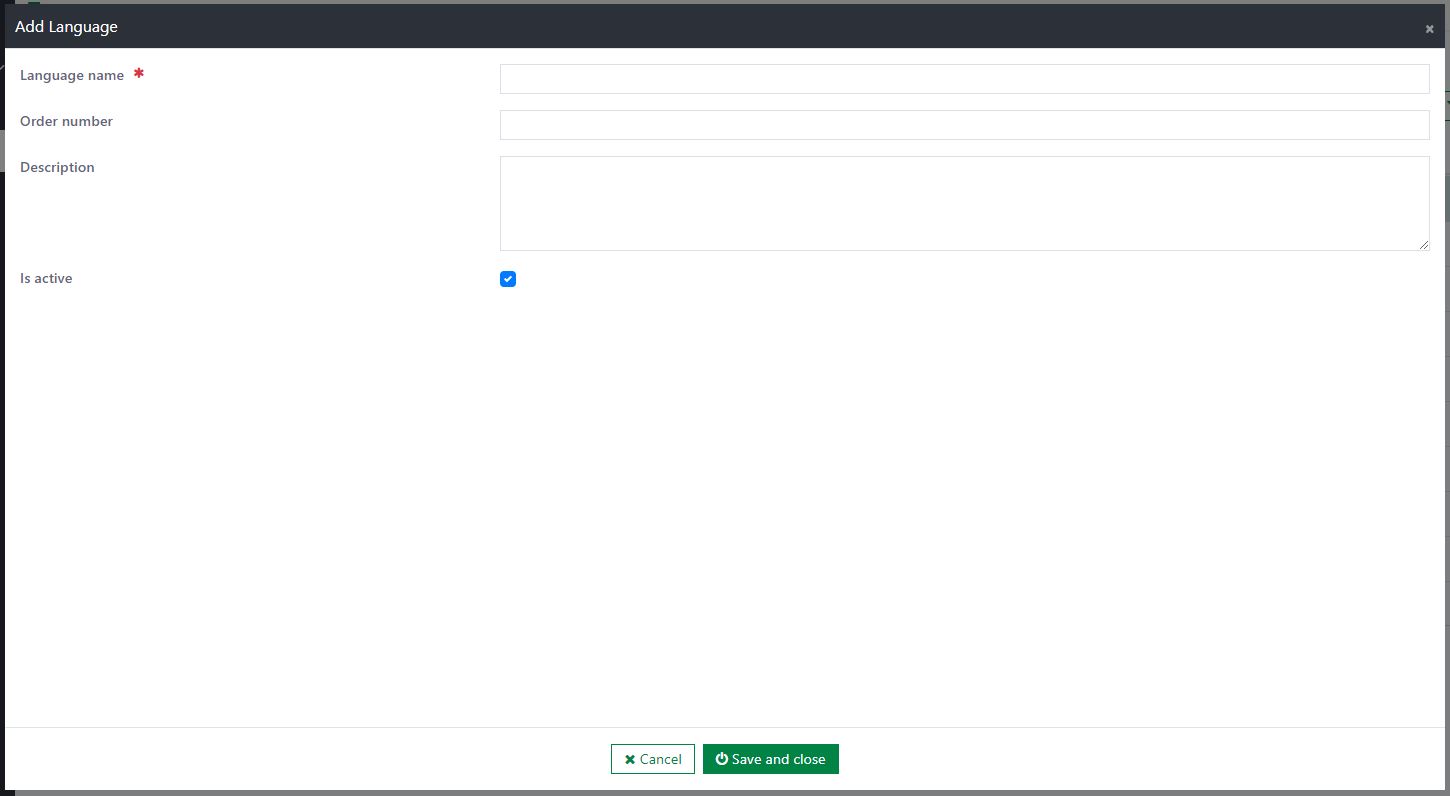
The following information must be provided when creating/editing a language:
- Language name: The name of the language. This field is required and unique.
- Order number: This field defines the display priority of the language. This field is optional.
- Description: This field is used to describe the language. This field is optional.
- Is active: This field is the status of the language. The default value is Active.
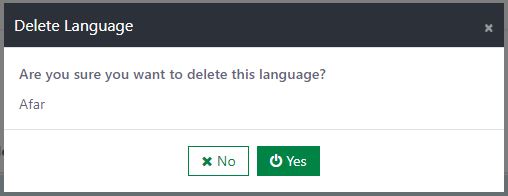
Delete a language:
To delete a language, click the Delete button. A confirmation dialog is then displayed. If you select Yes, the language is deleted immediately. If you select No, the deletion is cancelled.
- Note: Deleting a language that is in use in the system may cause errors.
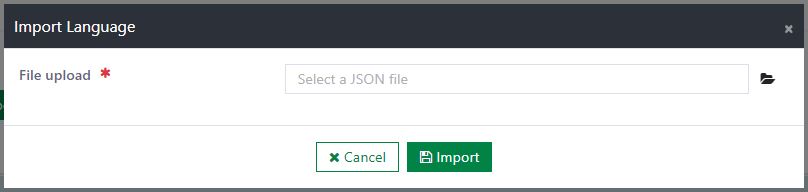
Import language data:
To import language data, click the Import button to open the Import Language dialog. Then click the placeholder of the File upload field to open the file selection dialog. After selecting the JSON file to import, click the Import button to import the languages from the JSON file. If you do not want to run the import, click the Cancel button.
- Note: All languages that exist in the destination environment will be overridden. (Detected by language name)
Export language data:
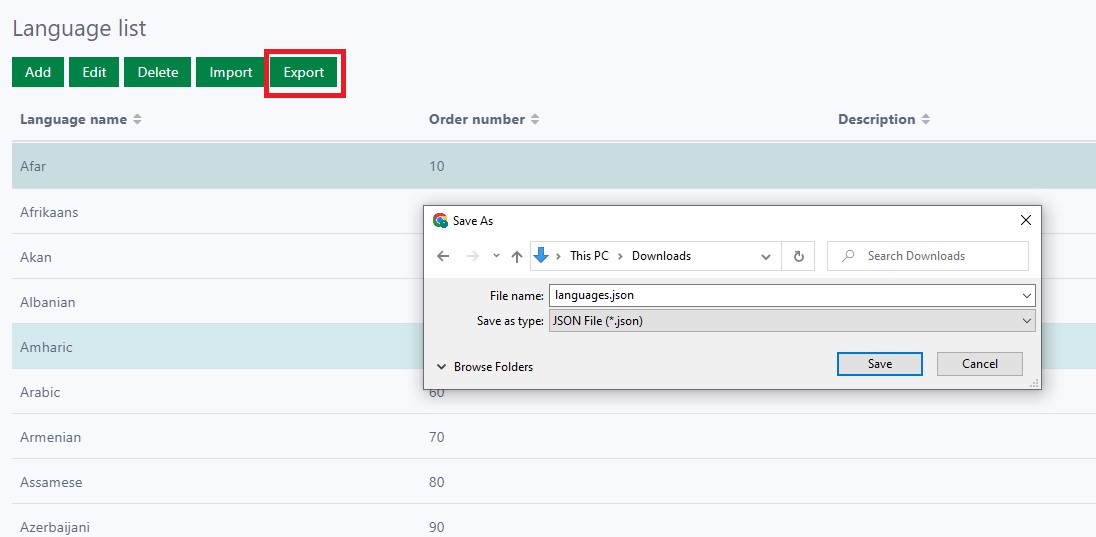
To export one or more languages from the list, select the languages, then click the Export button. The JSON file for the selected languages is then downloaded immediately.
Installation
Requirements
- Casewhere 2.6.10 or later
Configuration
- Import the product
- Link the page to your worker sites and configure access control
- You can generate default data in the settings page
Dependencies
- None
Releases
1.0.0 - 04/04/2022
Changelog
- Administration interfaces for managing languages.
- Import/export languages.
Download (login required): Language v1.0.0
Roadmap
- No plan as of now.