DevOps packages
In Casewhere Admin, navigate to DevOps Packages to create and manage packages for your solution deployment.

Create a DevOps package
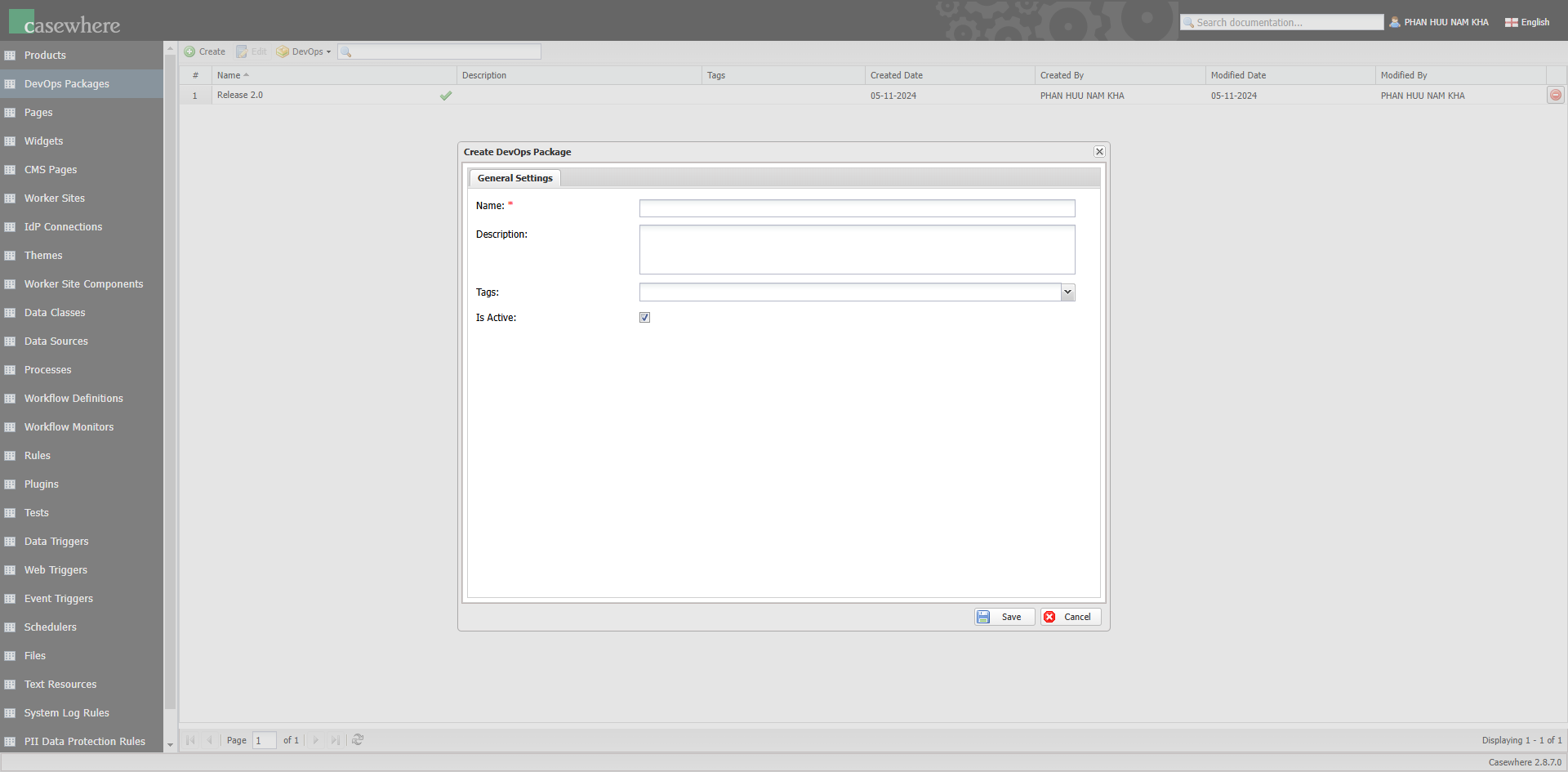
On the DevOps Packages page, click Create and fill in the following fields:
- Name: This field is required for the package name.
- Description: Provide additional details about the package, such as its purpose.
- Tags: Use tags to facilitate management.
- Is Active: Only active packages are accessible within Casewhere Admin.
Edit a DevOps package
On the DevOps Packages page, select a package and click Edit. The following dialog will appear, allowing you to edit the package.
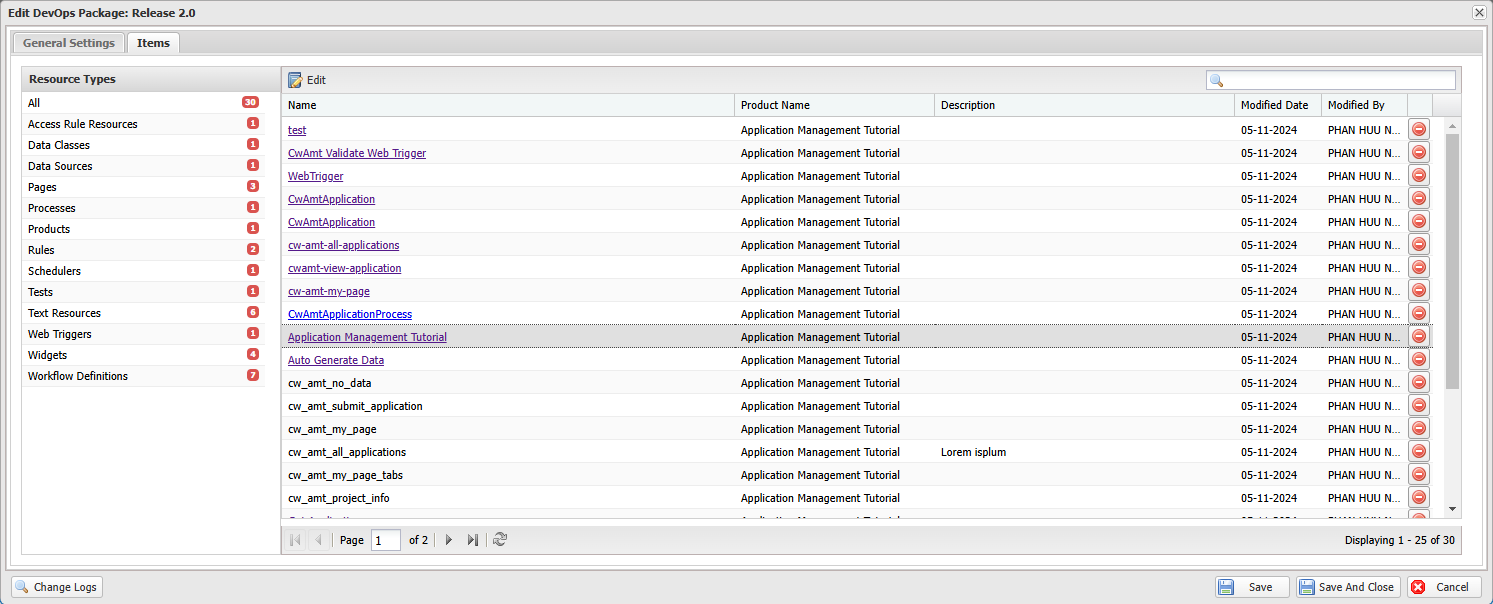
In the dialog, you can view all items added to the package. You can also add comments to individual items and delete items that are no longer part of the deployment. For adding items to the package, read here to learn more.
Delete or deactivate a package
While you can delete a package, it is recommended to retain all deployed packages for historical purposes. Deactivating these packages is a more appropriate choice, as deactivated packages will be inaccessible from other functionalities in Casewhere Admin.