Page management
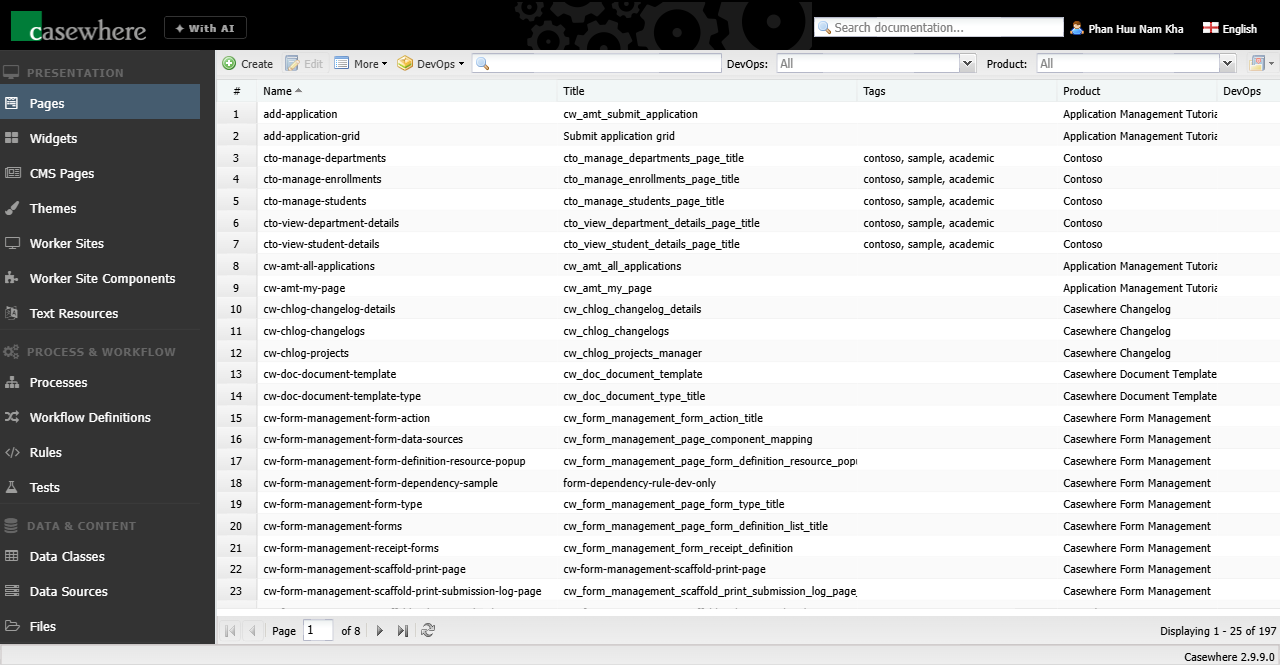
In Casewhere Admin, navigate to Pages to manage pages for your solution. From here, you can create, edit, and manage pages like any product resource.
Page editor
The page editor provides all the tools you need to customize your page.
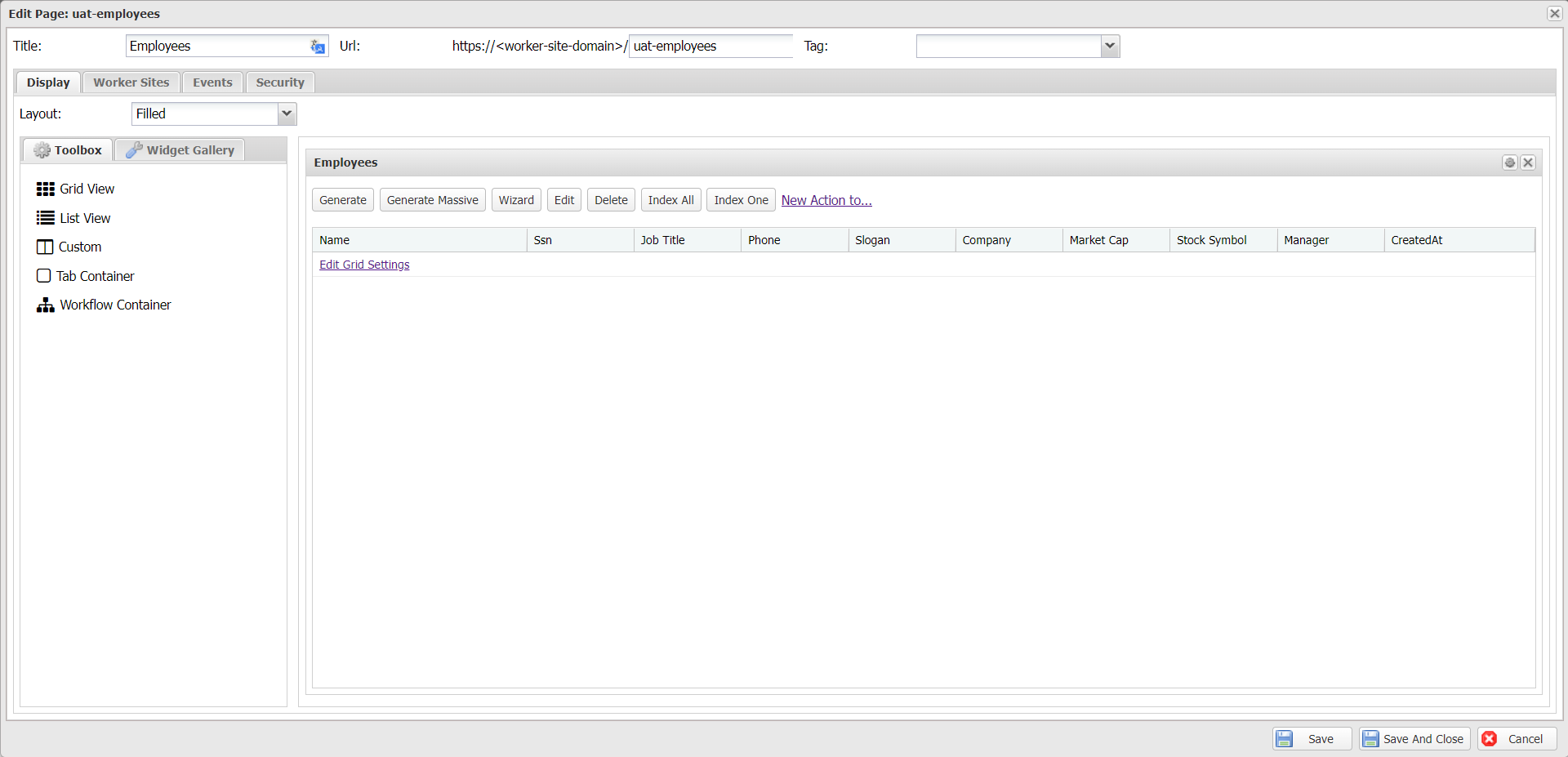
General settings
The following information is required to set up a page:
- Title: The page title shown in the worker site and browser tab.
- Url: The relative path of the page in a worker site. The Url must be unique across the entire deployment, even when pages belong to different worker sites.
- Tag: Tags are useful for resource management and searching.
- Page Script: JavaScript and CSS that run when the page loads. Use this for page-level customizations such as adding analytics, applying custom styles, modifying DOM elements, or injecting third-party scripts.
- Hide on Worker Site Menu: When enabled, the page is not shown in the worker site navigation menu. The page is still accessible via its URL.
- Display Count For: Optionally select a widget whose record count is shown as a badge on the page's entry in the worker site menu — for example, to surface the number of pending items without opening the page.
Display settings
You can design your page by selecting the layout type, then dragging and dropping widgets into the page.
Layout: Two layout types are available:
- Filled: Widgets are stacked vertically in a fixed-size panel.
- Grid: Widgets are organized in a configurable grid of rows and columns. Cells can be merged or split, and each cell can contain multiple widgets. The grid layout is ideal for dashboards.
Widget Toolbox: Five widget types are available:
- Grid View: Displays data in a tabular structure. Each row represents a record and each column can show one or more fields.
- List View: Displays data in a compact, responsive layout.
- Tab Container: Organizes widgets (e.g., grid views, list views) into separate tabs.
- Workflow Container: Embeds a workflow on a page.
- Custom: A scripting-based widget offering full flexibility to design custom UIs and handle user interactions in any way you need.
Worker sites
You can link your page to one or more worker sites by selecting them in the Page Group panel.
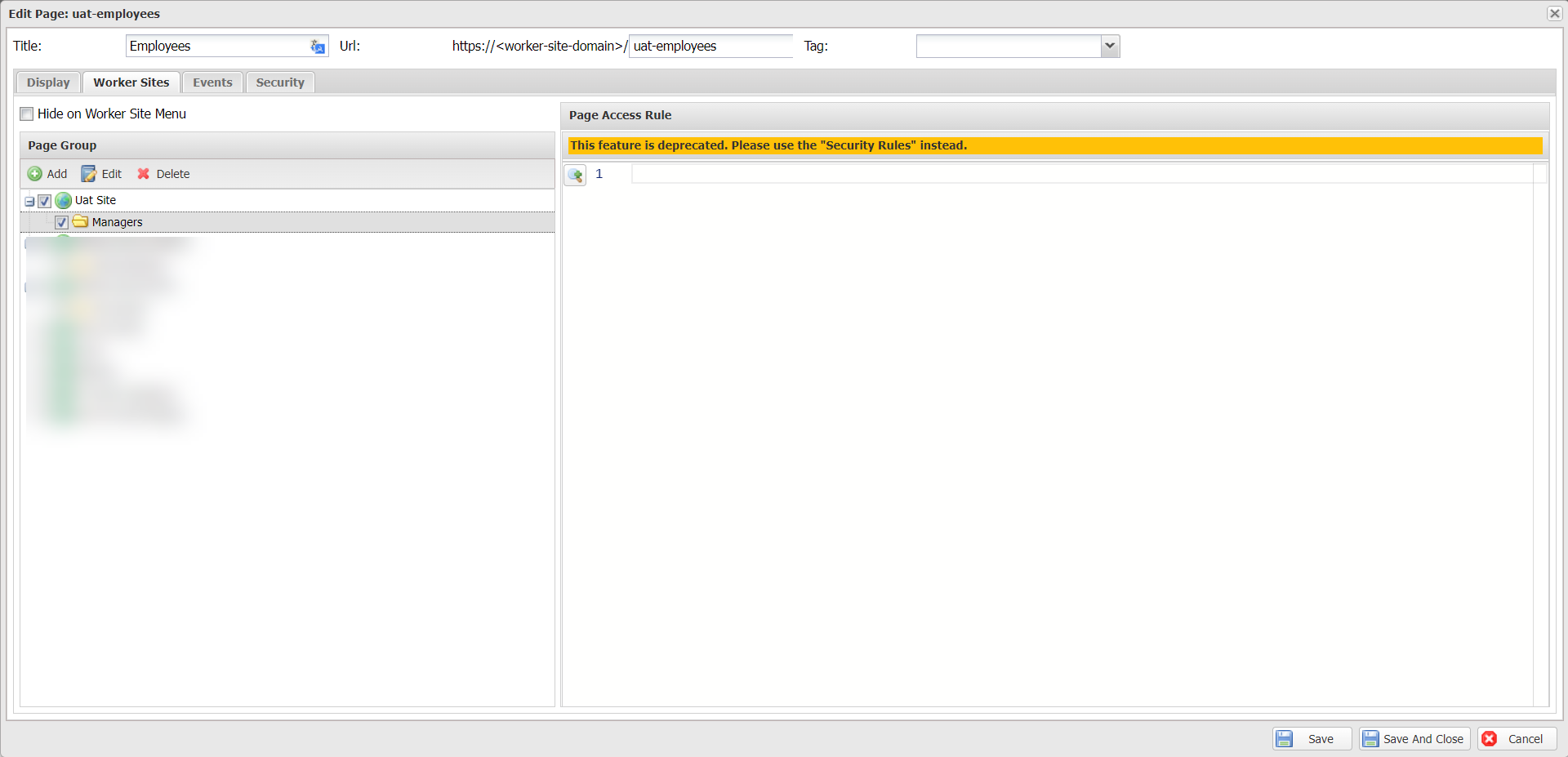
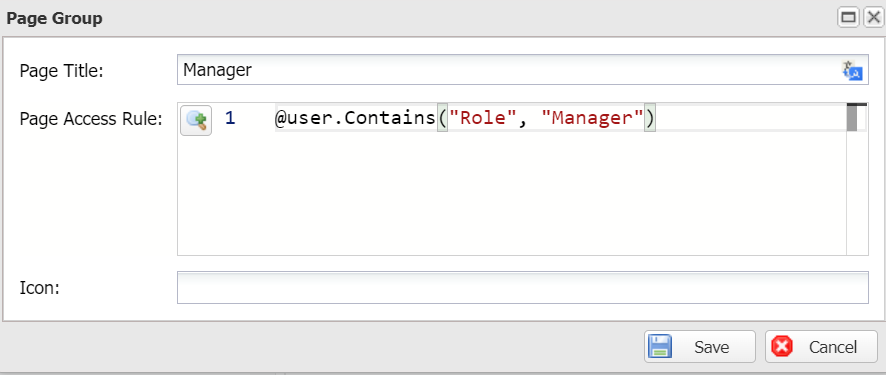
To better organize and secure pages, create a page group and define an access rule to protect it. For example, in the Page Group panel, Add a group called Managers containing pages only accessible by manager users, and set the rule as shown below:
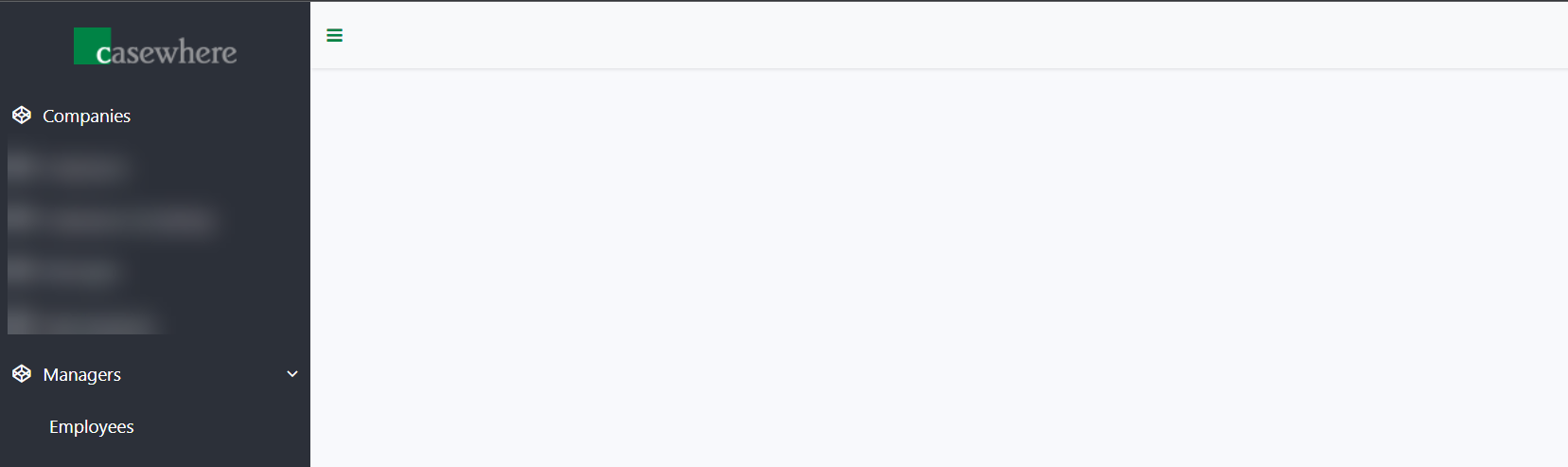
In worker sites, pages and page groups appear as follows:
Page events
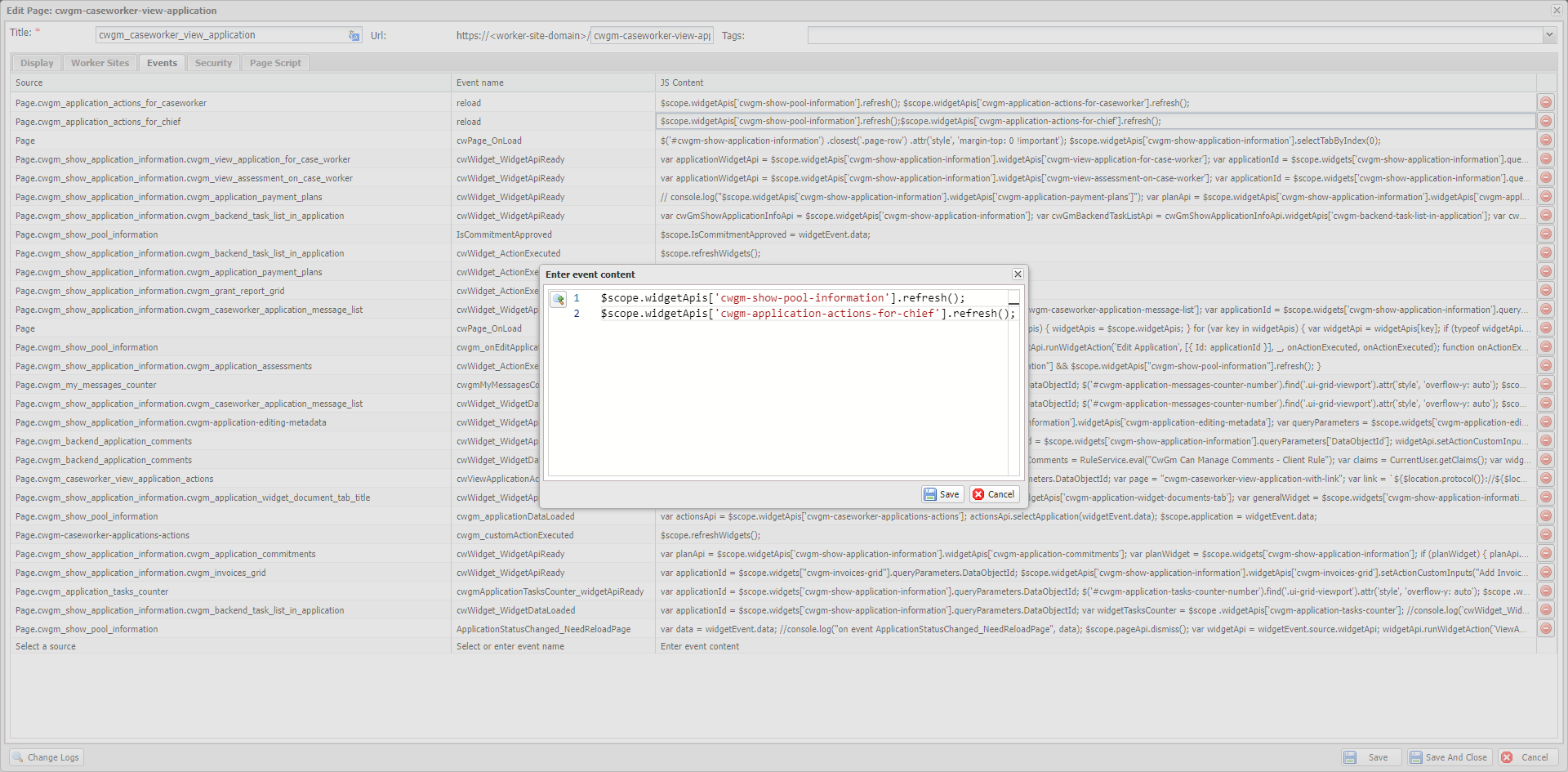
Casewhere supports page events so that you can subscribe to an event emitted from a widget and trigger an action in another widget.
To subscribe to an event:
- Select Source; this is the widget that emits the event.
- Select the event you want to subscribe to. For custom widgets, you have to type the event name.
- Implement logic for the event handler in JS Content.
You can learn more about page events here.
Security
By defining access rules, you can control who can access the page and what information is shown. In the page editor, navigate to the Security tab to manage page access.
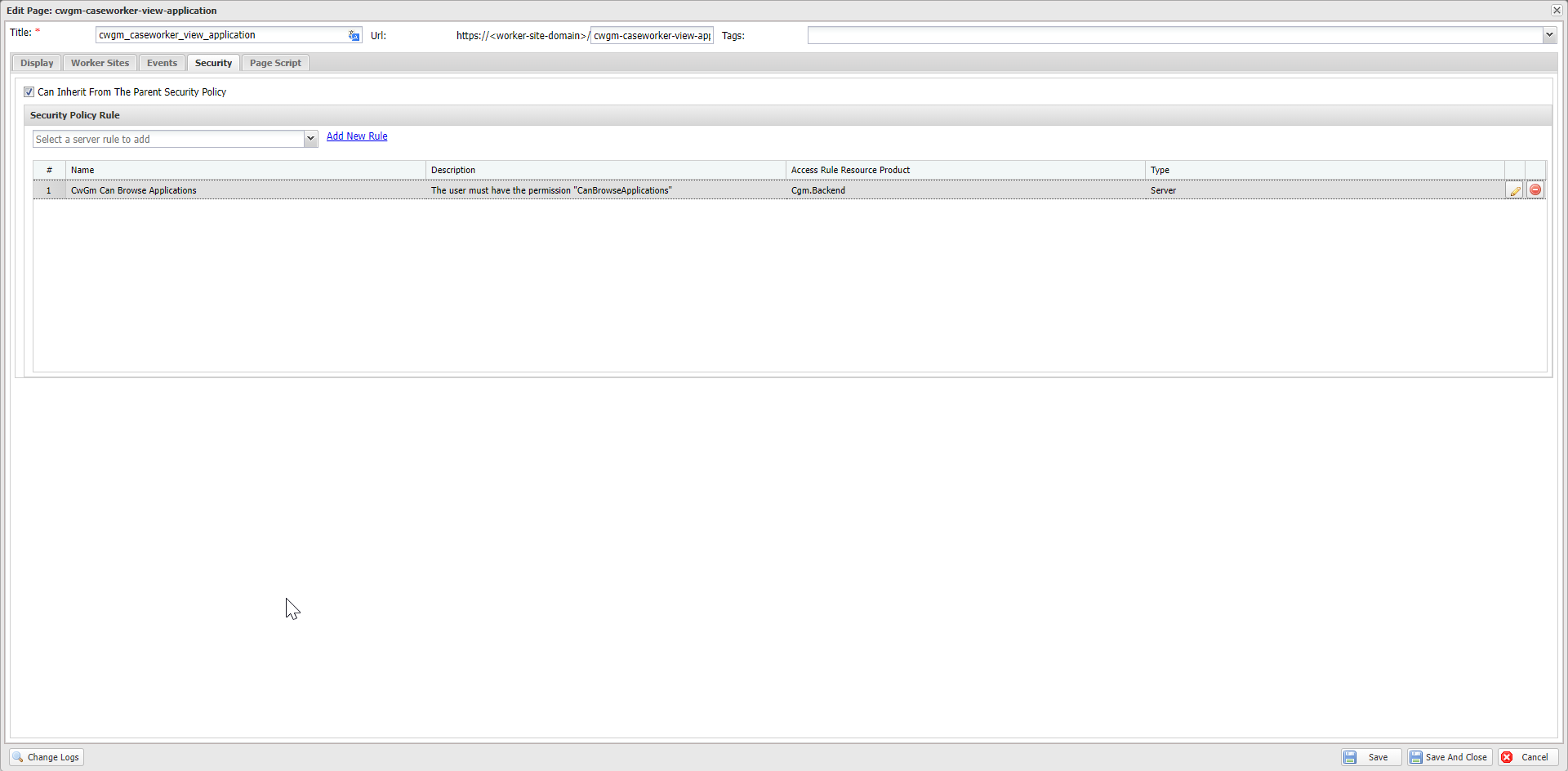
A good practice is to inherit access rules from the upper level, i.e., the worker site in this case. Additional access rules can be assigned if the page requires stricter access control.
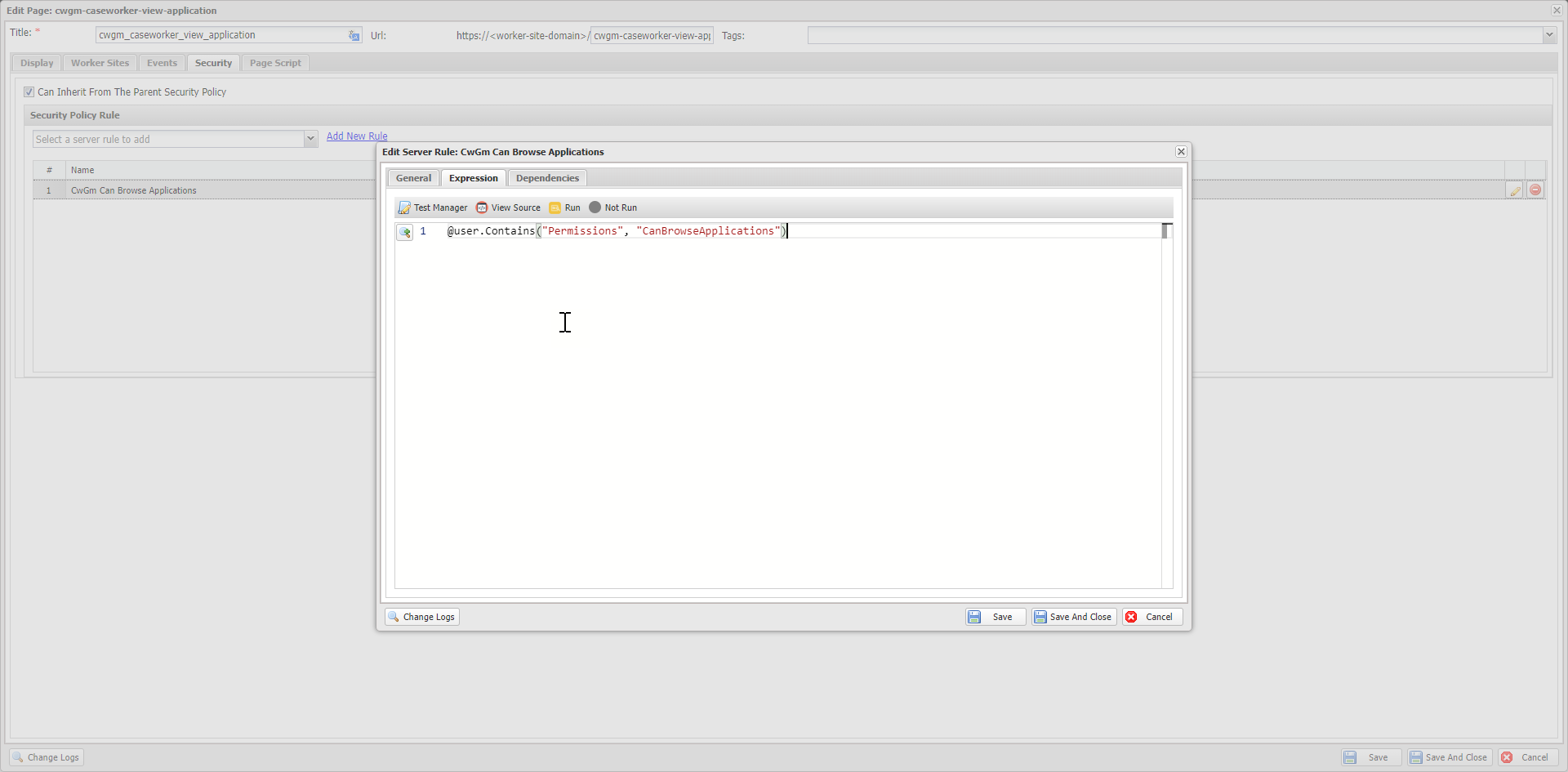
Example: Only users with "CanBrowseApplications" permission can access the page.
@user.Contains("Permissions", "CanBrowseApplications")
See Access rule for more information.