Plugin developement
Casewhere provides a flexible plugin framework to make it easy to extend your Casewhere solution with more functionalities. From simple tasks like sending emails to complex ones such as executing a SQL query, almost everything can be done using a Casewhere plugin. Casewhere plugins can be developed independently, installed on-demand, and invoked at runtime.
Plugin method
PluginMethod is an interface designed to ease the communication between Casewhere and plugins. Through this interface, Casewhere will send data to plugin and retrieve the result after the plugin executes.
public interface IPluginMethod
{
	PluginResult Invoke(PluginRequest request);
}
Develop plugin
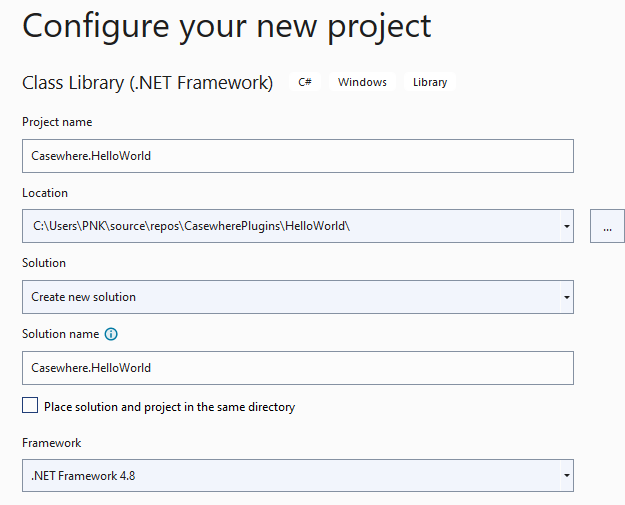
Create a .Net Framework Class Library project.
Add a reference to the assembly Casewhere.MethodPlugin. Make sure you refer to the correct assembly targeted to the .Net framework version you're working on.
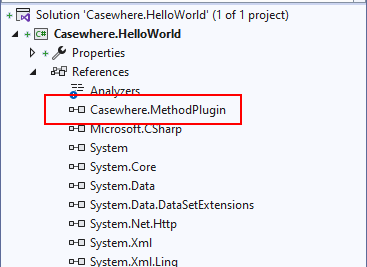
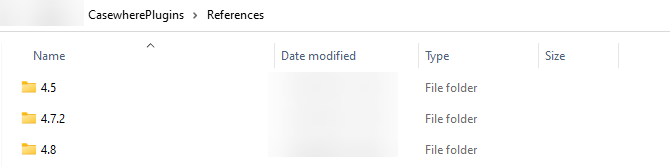
Hint: You can find the file Casewhere.MethodPlugin.dll in the folder Casewhere.Worker.Api/bin. Make sure you copy the file to your project folder.
Important: If you're a Casewhere Team developer, make sure you follow the team's guidelines to reference the file.
Add a class and implement the interface IPluginMethod.
public class HelloWorldMethod : IPluginMethod
{
    public PluginResult Invoke(PluginRequest request)
    {
        var name = request.Parameters["Name"]?.ToString();

        var result = new PluginResult();
        result.Data["Greeting"] = $"Hi {name}";

        return result;
    }
}
Install plugin
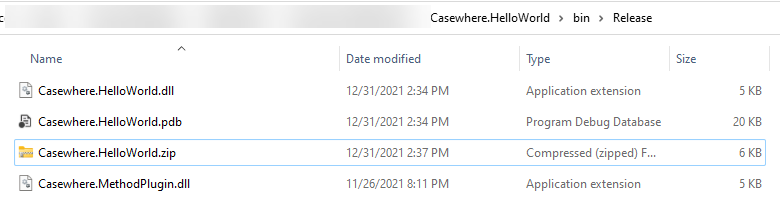
When you finish coding, build the project in Release mode. Navigate to bin/Release in your project folder and create a zip file for all the files.
In Casewhere Admin, navigate to Plugins, click Create and fill in the information as the example below:
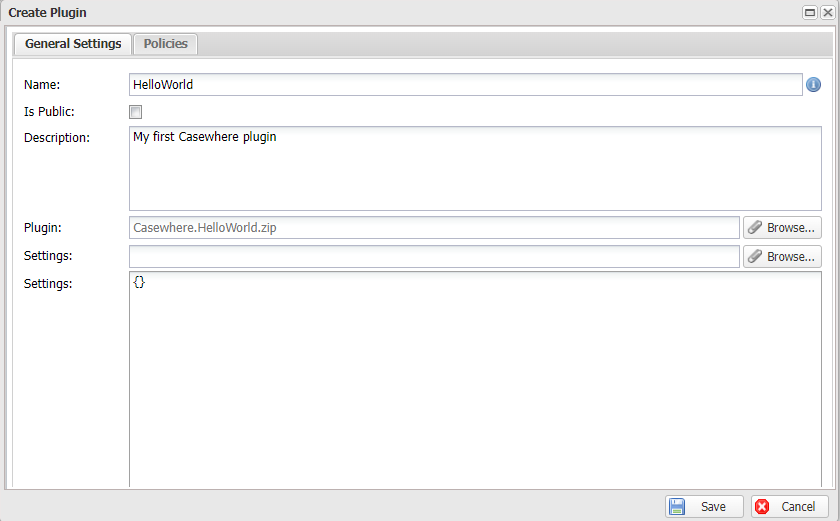
Test plugin
After creating the plugin, you can use the built-in testing framework to test if the plugin works as expected.
Select the plugin you just created, click Test Manager.
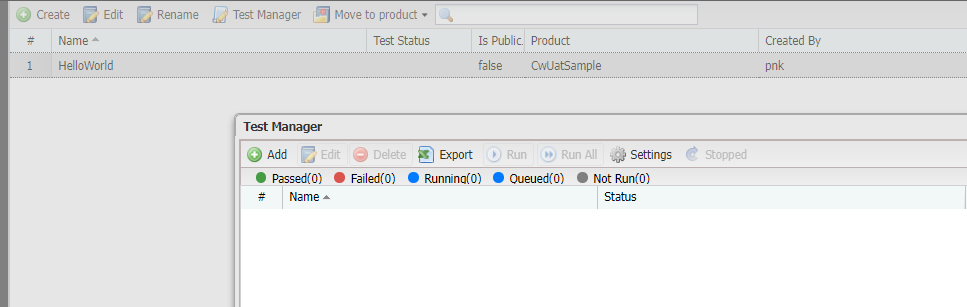
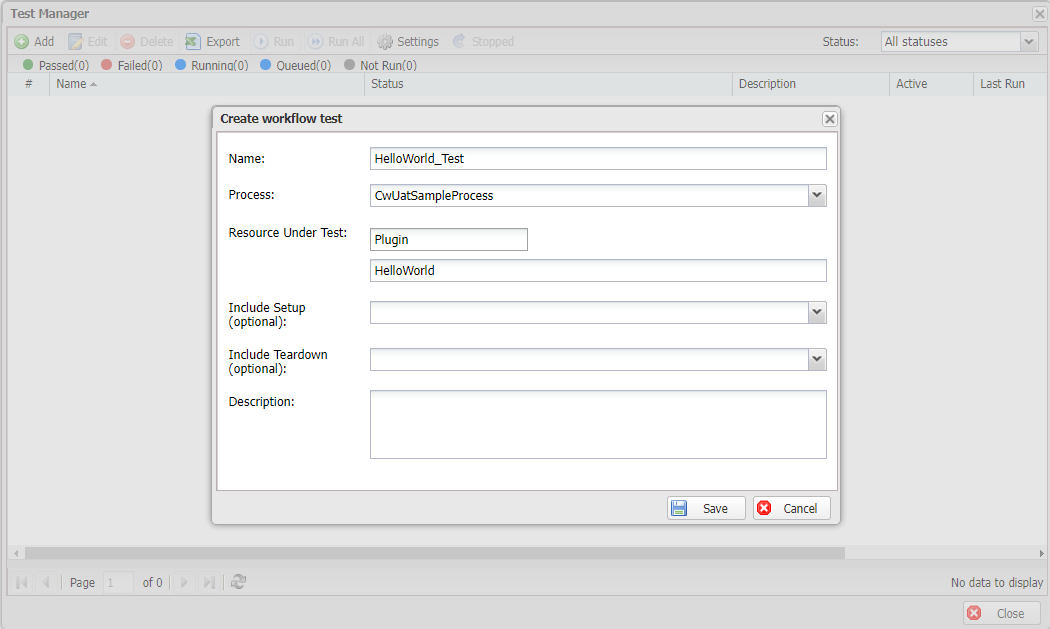
In the Test Manager, click Add, fill-in the information as well as select a Process for testing. Finally, click Save.
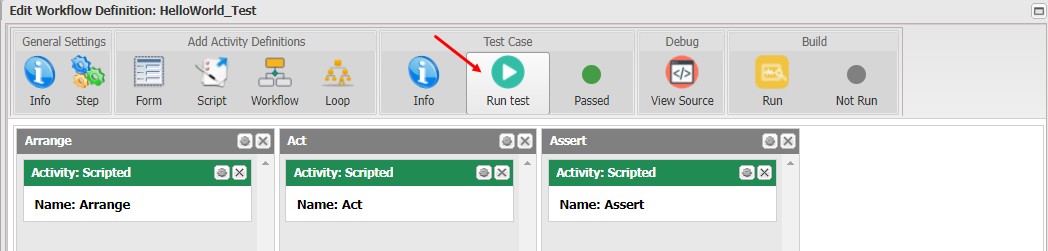
A new test workflow will be created as below:
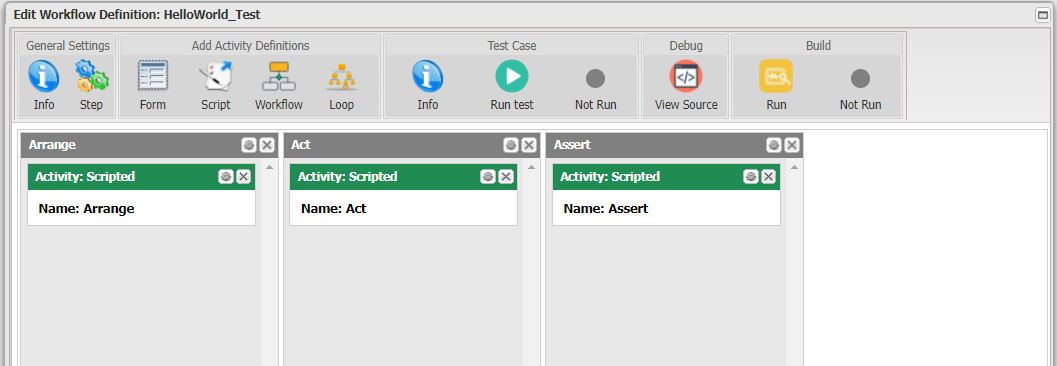
In Arrange, you can use the following script to prepare the test data.
var testApi = ctx.Use<ITestApi>();
testApi.Set("Name", "John Doe");
The Act step is where you execute the plugin and retrieve the reult.
var pluginApi = ctx.Use<IPluginApi>();
var testApi = ctx.Use<ITestApi>();

var parameters = new Dictionary<string, object>();
var result = pluginApi.Invoke("HelloWorld", "HelloWorldMethod", parameters);
testApi.Set("result", result.Get<string>("Greeting"));
In Assert, you will verify if the result is what you are expecting.
var testApi = ctx.Use<ITestApi>();

var result = testApi.Get<string>("result");
testApi.True(result == "Hi John Doe", "The output is not correct.");
Finally, click Run test and examine the test result. You can learn more about the Casewhere automation test framework here.
Plugin configuration
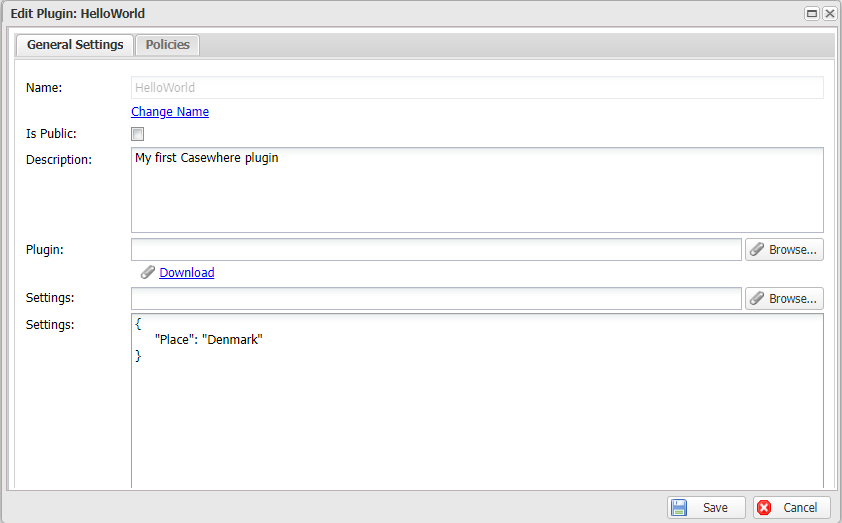
When installing the plugins, Casewhere users must configure the settings that the plugin requires to function. The plugin settings must be text-based, using a format specified by the plugin. A typical format for plugin settings is JSON as the example below:
The Casewhere plugin framework provides an interface for plugins to load the configuration from Casewhere Admin and use it in the plugin methods.
public interface IPluginConfigure
{
    void Configure(string settings);
}
The above example is showing that the plugin requires a Place attribute to function. You can implement the plugin configuration by adding a class with the below code:
public class PluginConfiguration : IPluginConfigure
{
    public void Configure(string settings)
    {
        var obj = JObject.Parse(settings);
        Endpoint = obj["Place"].Value<string>();
    }

    public static string Place { get; set; }
}
You then can use the setting in your plugin method like this:
public PluginResult Invoke(PluginRequest request)
{
    var name = request.Parameters["Name"]?.ToString();

    var result = new PluginResult();
    result.Data["Greeting"] = $"Hello {name} from {PluginConfiguration.Place}";

    return result;
}