Prepare your instance
Introduction
A new Casewhere instance has no languages and no texts yet. Every worker site has a default language, and every text your application shows can be translated into the instance's languages. In this chapter you add English and Danish, and import the texts of Casewhere's own buttons and messages.
If your instance already has its languages and these texts, you can skip this chapter.
Add the languages
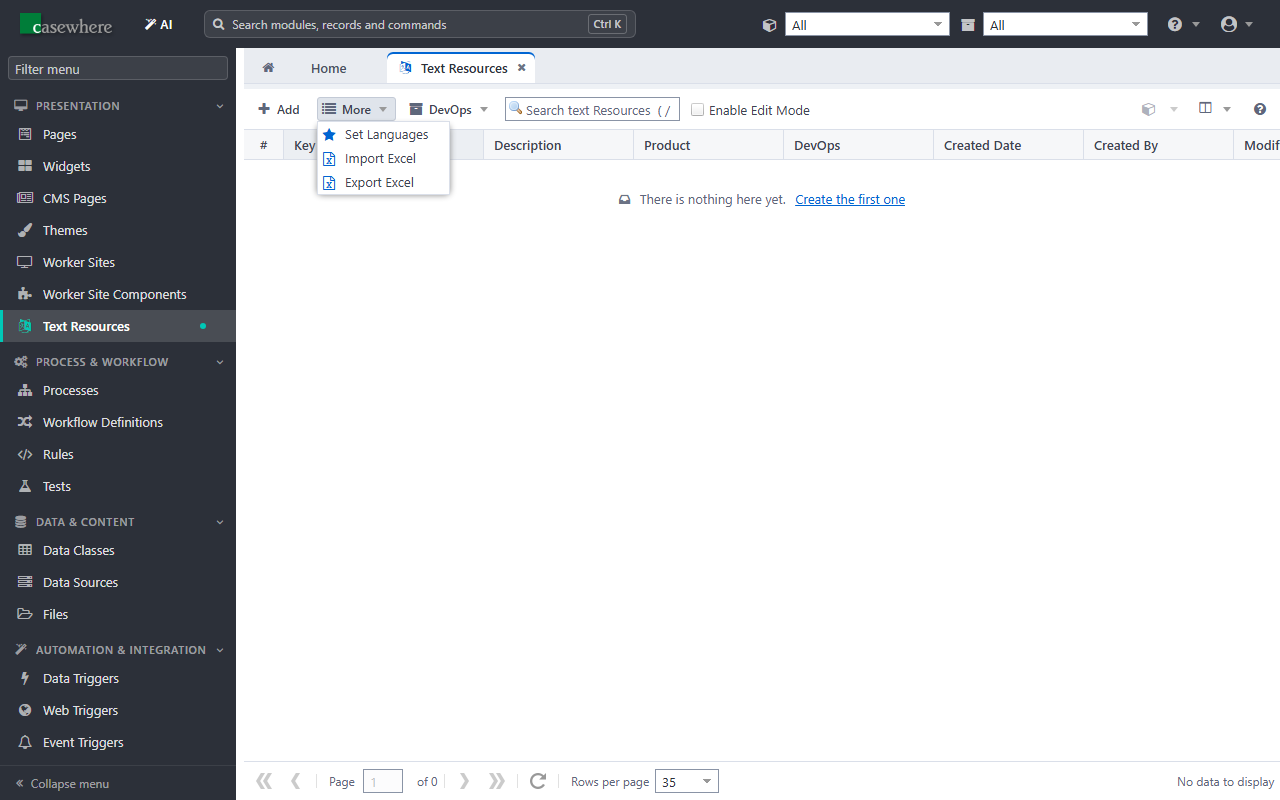
In Casewhere Admin, open Text Resources in the menu.
Click More and then Set Languages.
In the Languages window, click Create and fill in the dialog:
Field Value Culture English (United States) Title English Default ☑ 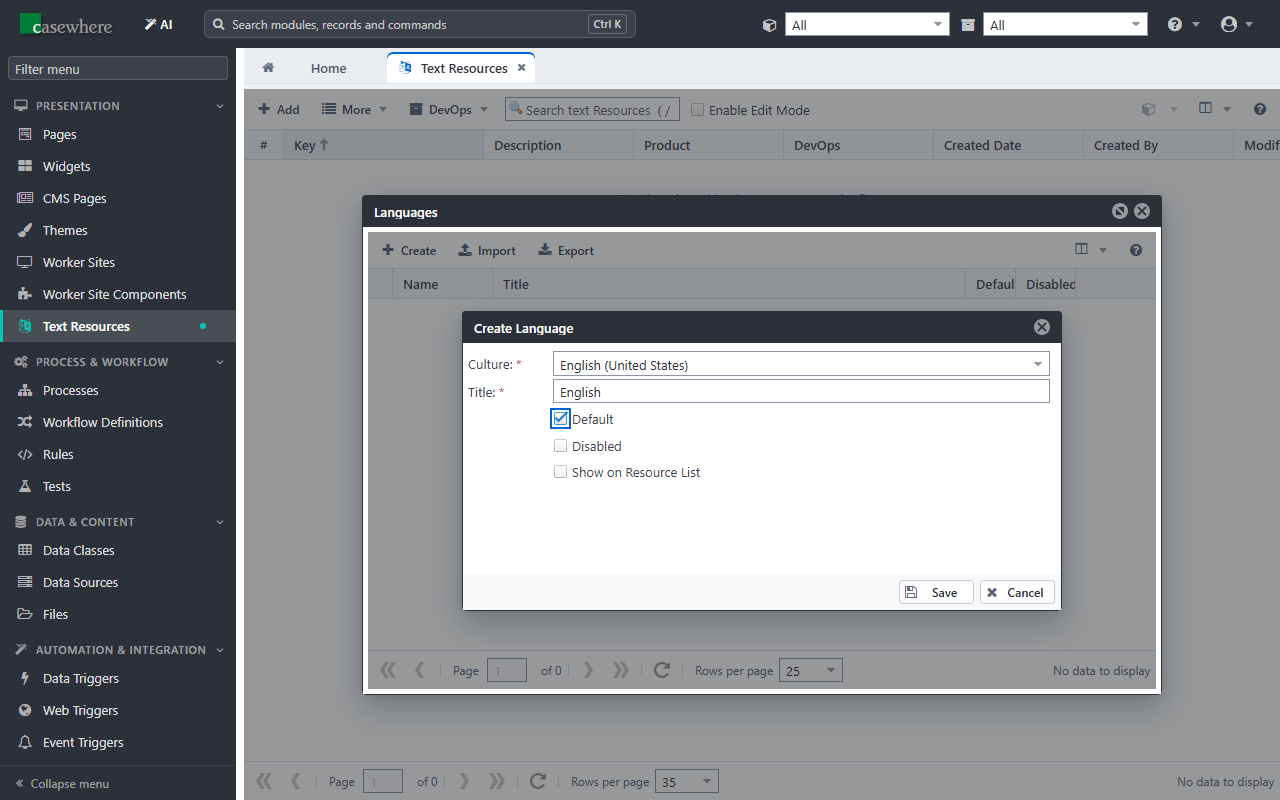
Click Save.
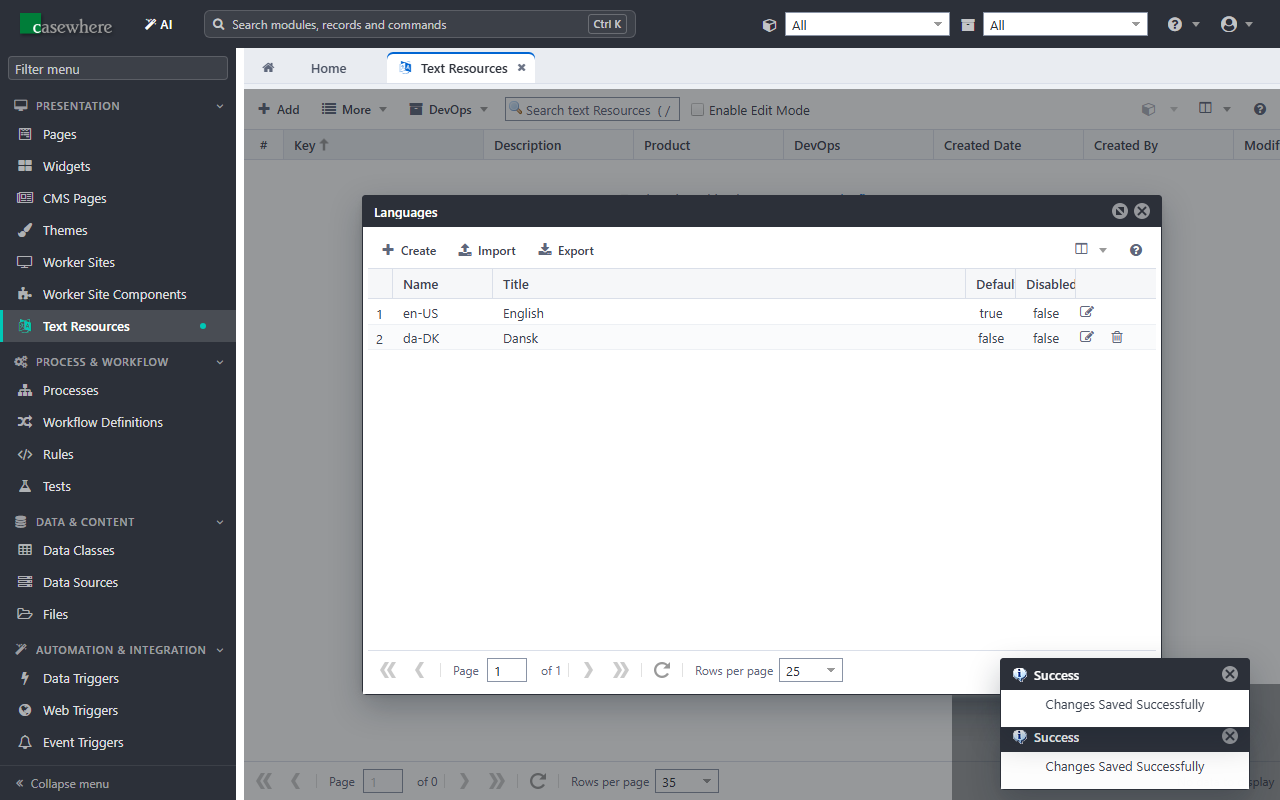
Click Create again and add Danish:
Field Value Culture Danish (Denmark) Title Dansk Click Save. The Languages window now lists both languages.
Tip
The default language is used for every text that has no translation in the user's language. Languages belong to the instance, not to a product: all products share them.
- Close the Languages window.
Import Casewhere's own texts
Worker sites show texts of their own: the buttons of a form (Save & close, Cancel), the search box of a list, messages. They come from text resources with fixed keys, such as save_and_close_navigation_button. A new instance has none, so its worker sites show the keys instead. Import them:
Download casewhere-platform-texts.xlsx. It has a column per language, named after the language's culture (
en-US,da-DK): if your languages have other cultures, rename those columns first.In Text Resources, click More and then Import Excel, and choose the file.
The list now has the texts, for example
cancel_navigation_button.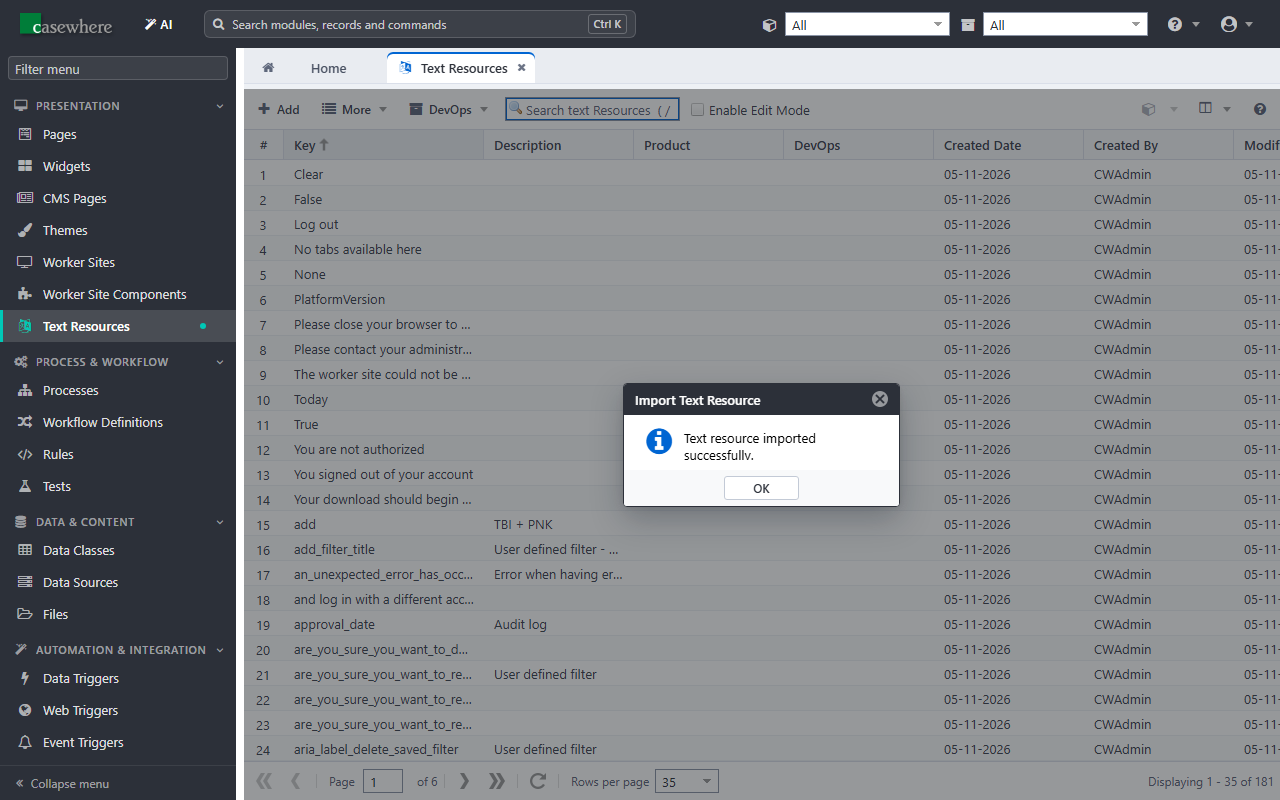
Note
The worker sites read the texts from files the Casewhere API builds in the background, so the new texts can take a minute or two to show.
Next: Create the product.