Manage and run tests
A test in Casewhere is a workflow of its own, a test workflow: it prepares what the resource under test needs, runs the resource, and checks the outcome. You manage the tests in Tests, and the Worker API runs them. This article shows how to set up testing, create a test, run it and read its result. Test a workflow shows how to write one.
Set up testing
In Tests, click Settings:
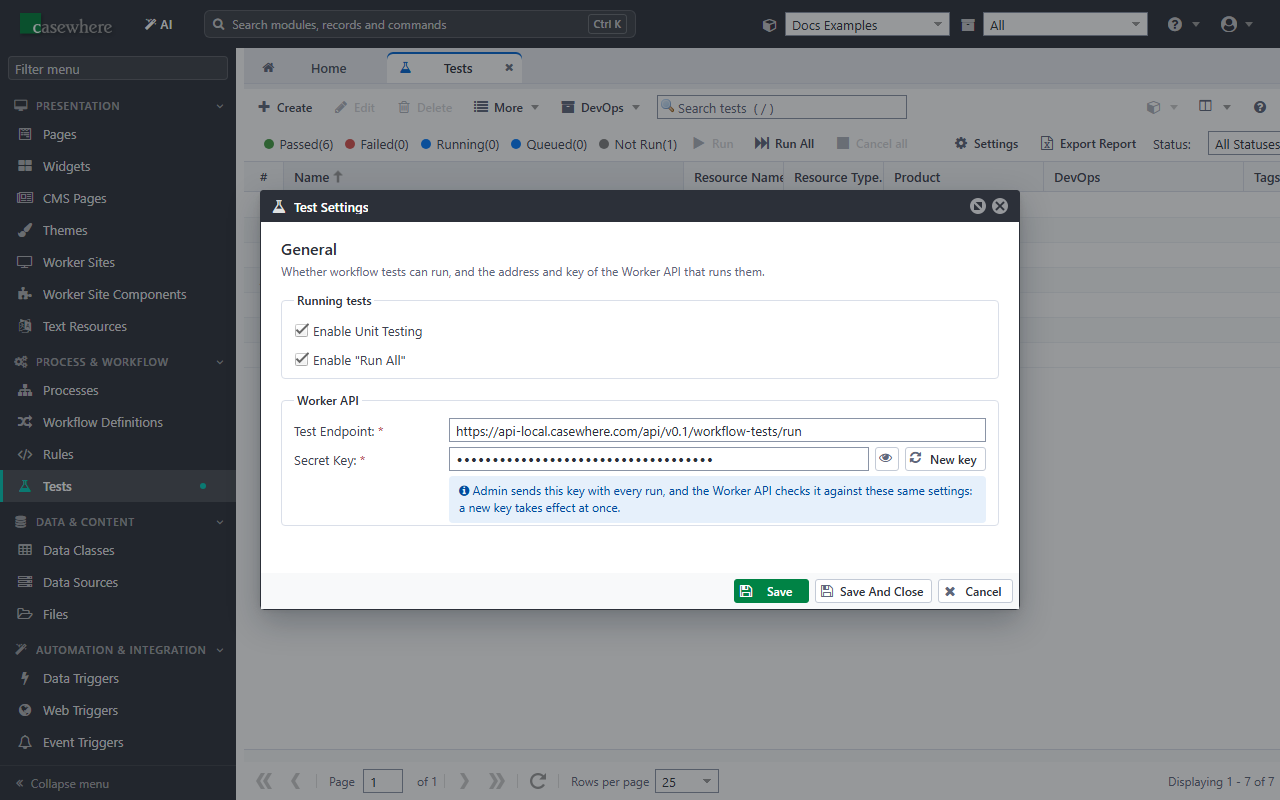
| Setting | What it does |
|---|---|
| Enable Unit Testing | Lets tests run. Clear it to stop all test runs. |
| Enable "Run All" | Enables Run All in the lists of tests. |
| Test Endpoint | The address of the test runner of the Worker API: https://<Worker API>/api/v0.1/workflow-tests/run. |
| Secret Key | The key Admin sends with every run: the Worker API runs a test only with this key. New key makes a new one, which takes effect at once. |
Create a test
In Tests, click Create:
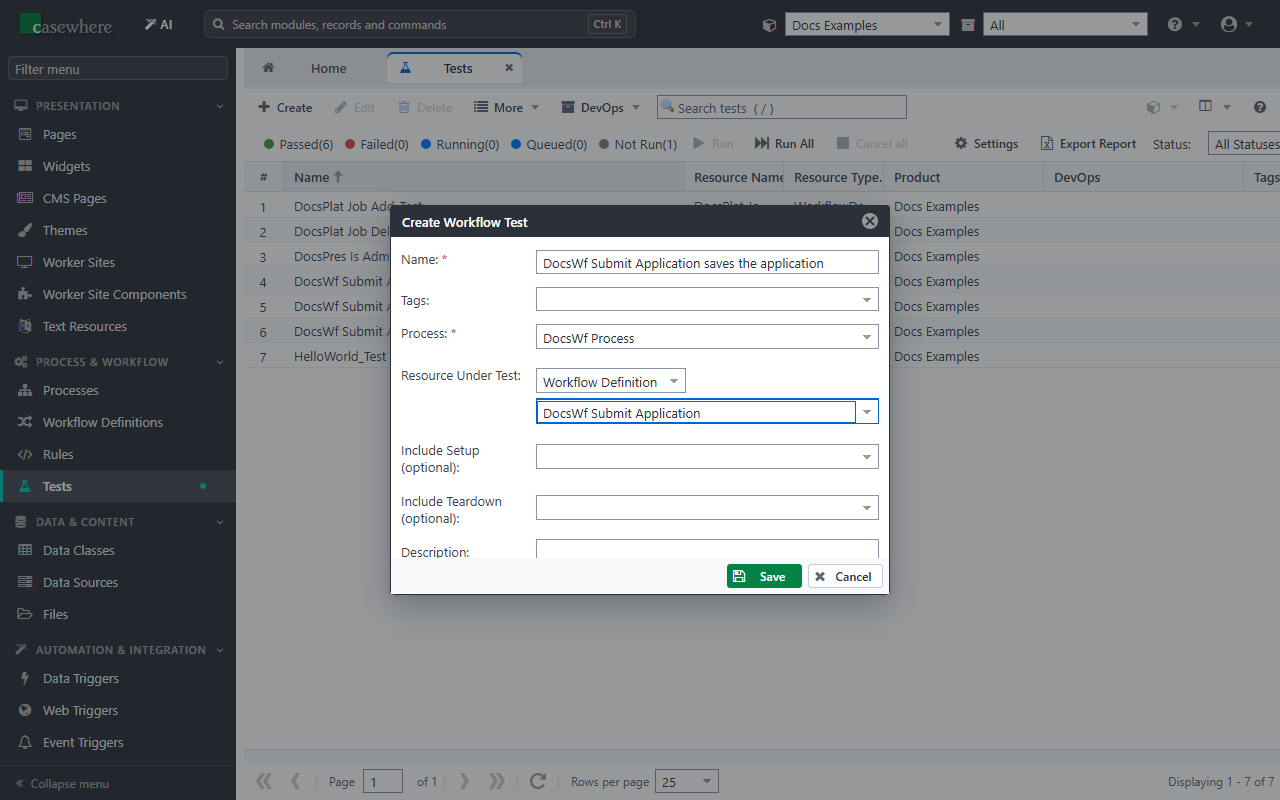
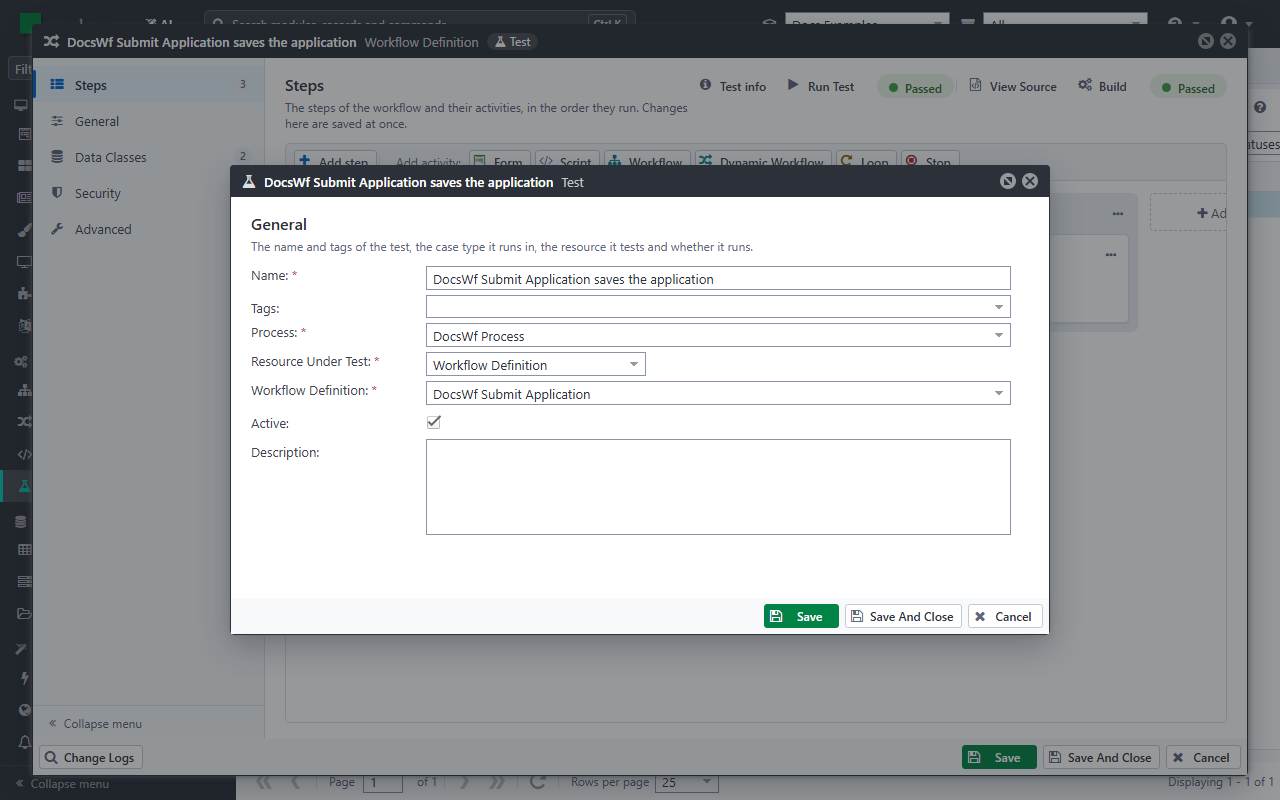
Name: say what the test checks, for example DocsWf Submit Application saves the application. A failed test then tells you what does not work.
Tags: words to find the test by.
Process: the process the test runs in. Each run of the test starts in a new case of this process.
Resource Under Test: the kind of resource, then the resource. The test workflow Casewhere makes depends on it:
Resource Under Test The steps of the test workflow Workflow Definition Arrange (a script), Act (a workflow activity that starts the workflow under test), Assert (a script) Rule Arrange, Act (evaluates the rule) and Assert, all scripts Plugin Arrange, Act (calls a method of the plugin) and Assert, all scripts Data Source Arrange, Act and Assert, all scripts Widget Arrange, Act (reads the data, the content and the access of the widget) and Assert, all scripts None One script, Test: for a check that no single resource covers, or for a script you want to run on demand, such as one that adds sample data Include Setup and Include Teardown (optional): a workflow that runs before the test, and one that runs after it. For example, a setup workflow adds data that several tests need, and a teardown workflow removes it again.
Description: what the test is about.
Click Save, and the test workflow opens.
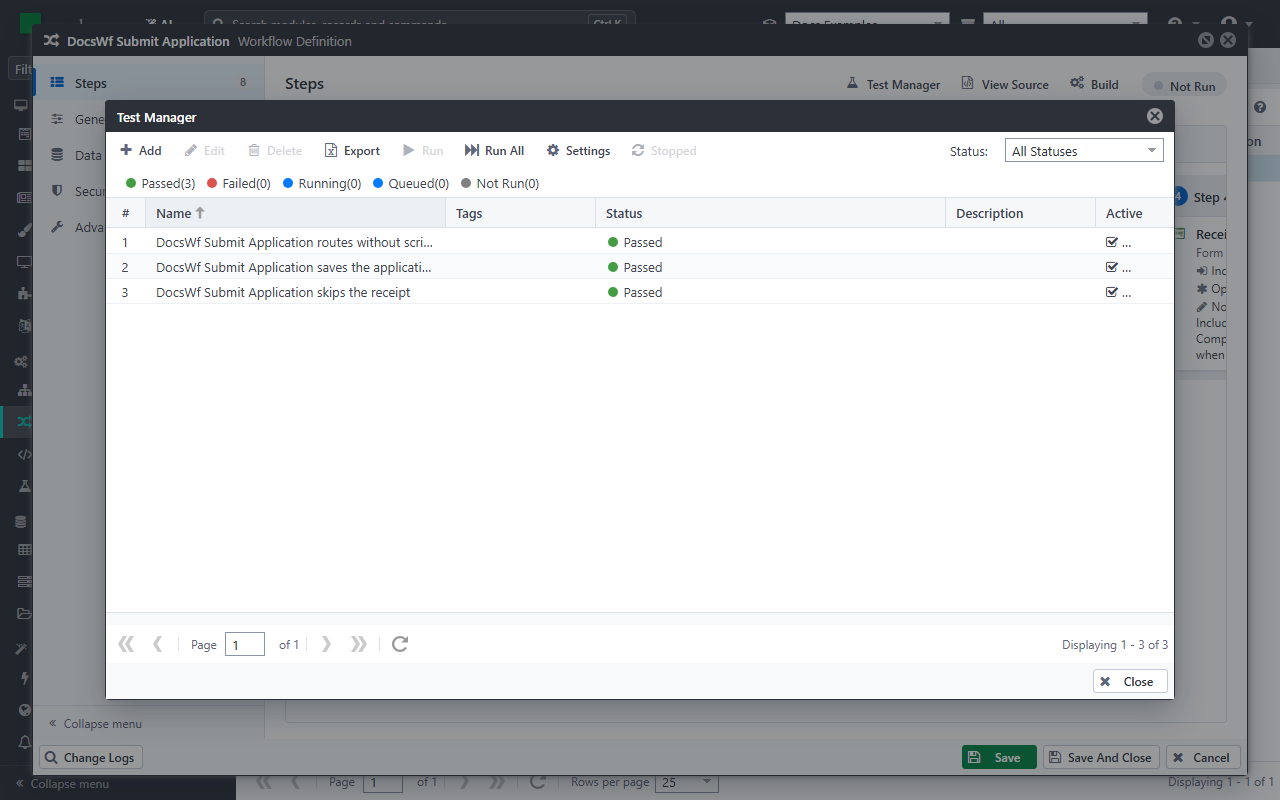
You can also start from the resource you want to test. The editor of a workflow definition has a Test Manager button in its Steps, and the editor of a rule in its Expression. The lists of workflow definitions, rules and plugins have More > Test Manager. The Test Manager lists the tests of the resource with the result of their last run, and Add creates a new test of it:
The test workflow
A test workflow is a workflow definition marked Test. You write the test in the scripts of its steps, as in any workflow, and you can add steps and activities to it:
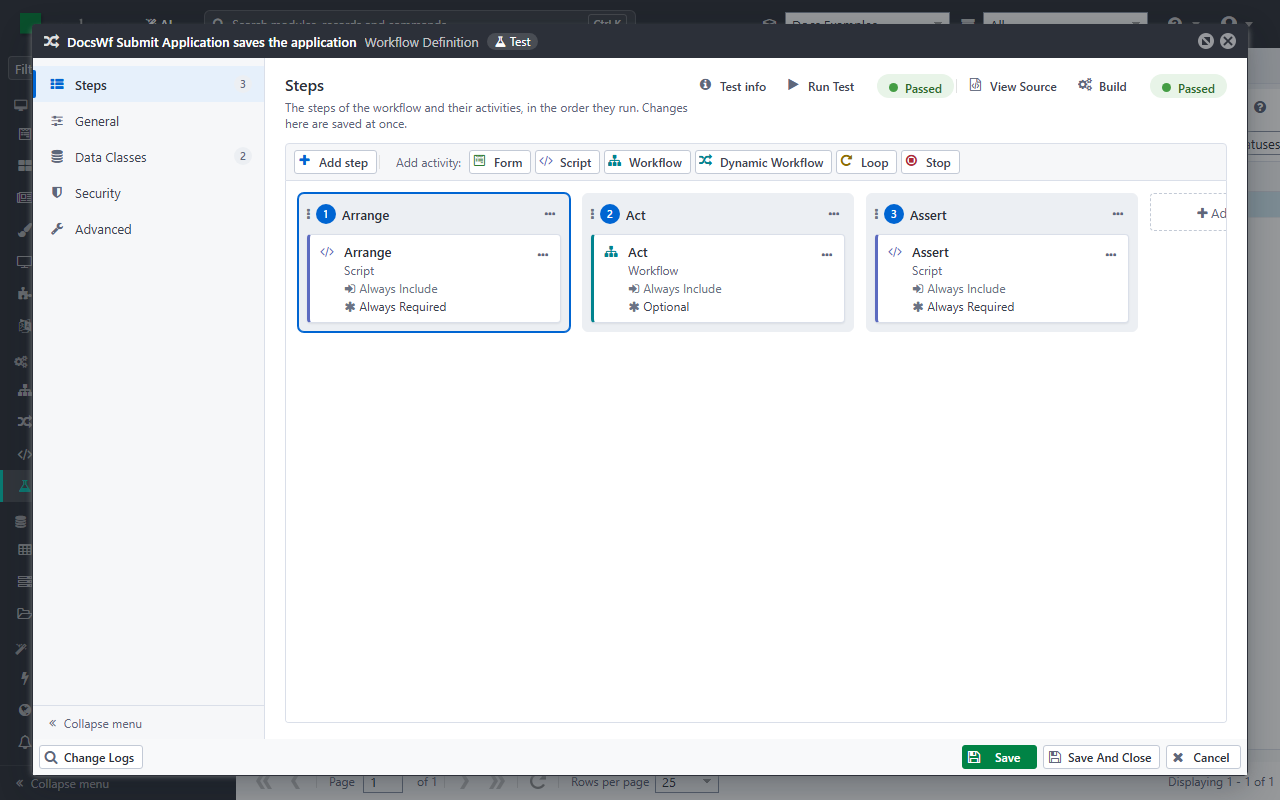
The heading of its Steps has what a test adds to a workflow:
- Test info: the settings of the test. Active decides whether Run All runs the test.
- Run Test: runs the test.
- The result of the last run, next to Run Test. When it is Failed, click it for the details.
- Build compiles the test workflow, as for any workflow. Click it after you change the scripts: it finds a mistake before a run does. A test whose scripts do not compile fails when it runs, and its error shows the compilation errors.
Run tests
To run one test, click Run Test in its test workflow. Its result changes to Queued and Running, and then to Passed or Failed.
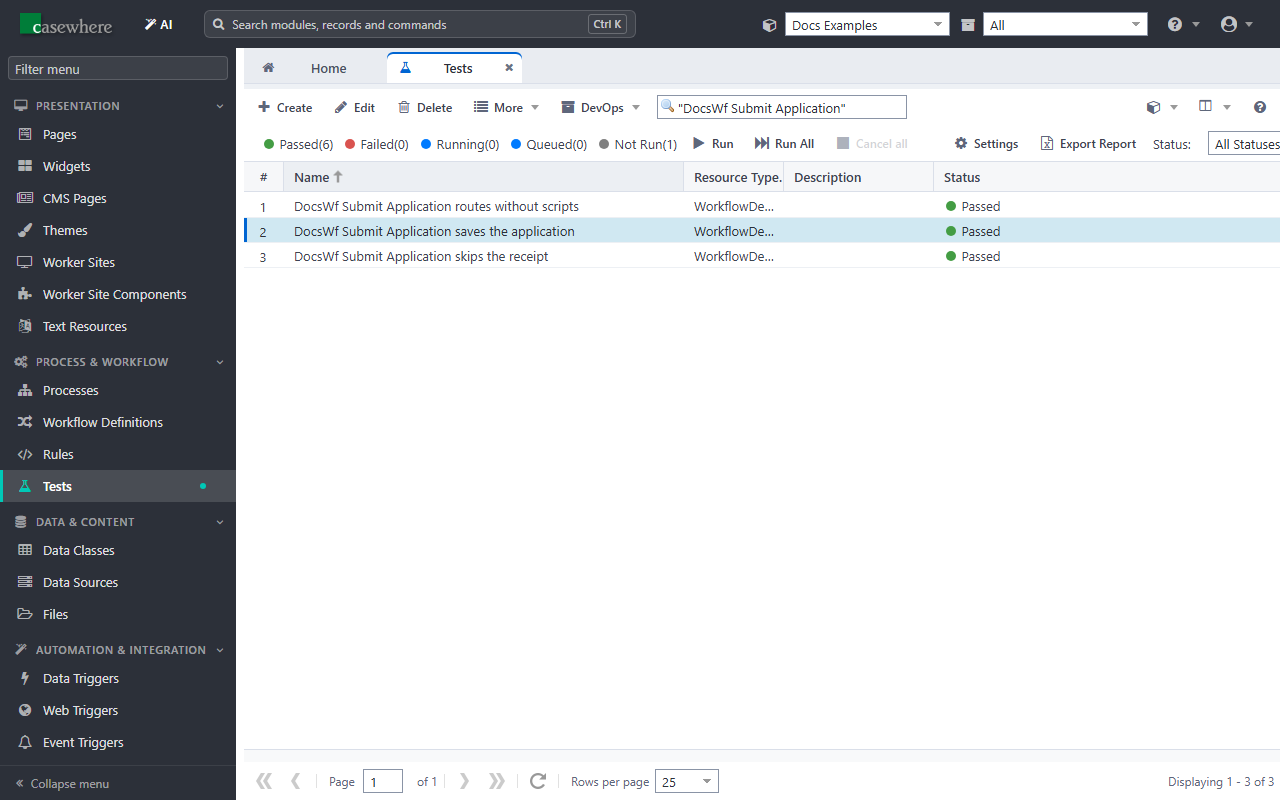
In the list of Tests, and in a Test Manager:
- Run runs the selected test.
- Run All runs every active test that the list shows: the tests that match the search and the Status filter.
- The counters above the list show how many tests have each result. Status shows only the tests with one result, for example the failed ones.
- Cancel all is available while tests run. It sets every test that is queued or running back to Not Run, also in other products. The other tests keep their result. Use it when tests stay Queued or Running.
- Export Report downloads the tests of the list, with their results, as an Excel file.
Read the result
The result of a test is the result of its last run:
| Result | Meaning |
|---|---|
| Not Run | The test has not run since it, or the resource it tests, was last changed. |
| Queued | The test waits to run. |
| Running | The test runs. |
| Passed | The test workflow ran to the end, and all its checks passed. |
| Failed | A check failed, a script of the test workflow threw an error, or the test workflow did not run to the end. |
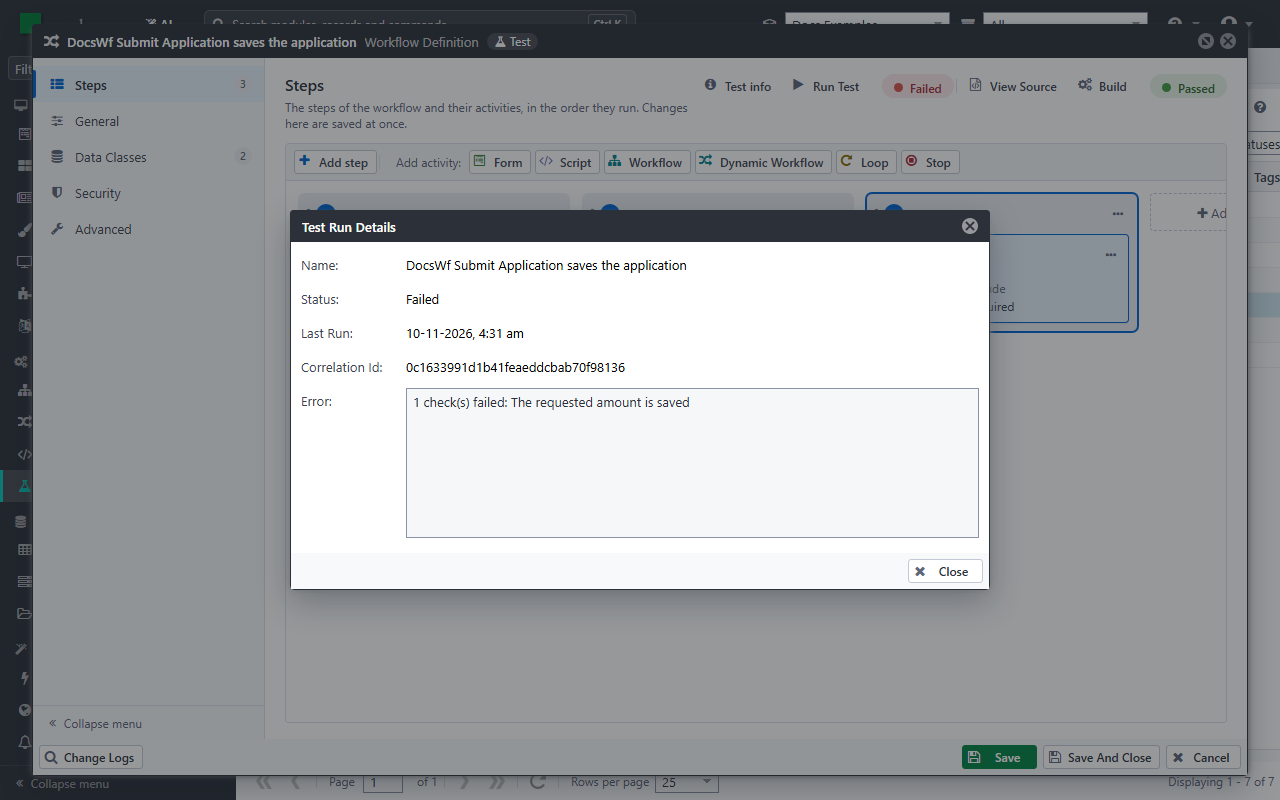
Click Failed in the test workflow to see the Test Run Details. In the lists of tests, the info icon after the error of a failed test opens them too. Error gives the reason: the checks that failed, or the error and where it happened. The Correlation Id finds the log entries of the run, including what the scripts of the test wrote with Log.Info, in the system log viewer.
Keep the tests up to date
When you change a test, or the resource it tests, the result of the test goes back to Not Run: run it again to know whether it still passes.
The lists of workflow definitions, rules, data sources and widgets have a Test Status column. It shows how many of the tests of each resource passed, for example 3/3 passing. The dot is green when all of them passed, red when one of them failed, and yellow when only some of them passed.
