Data source management
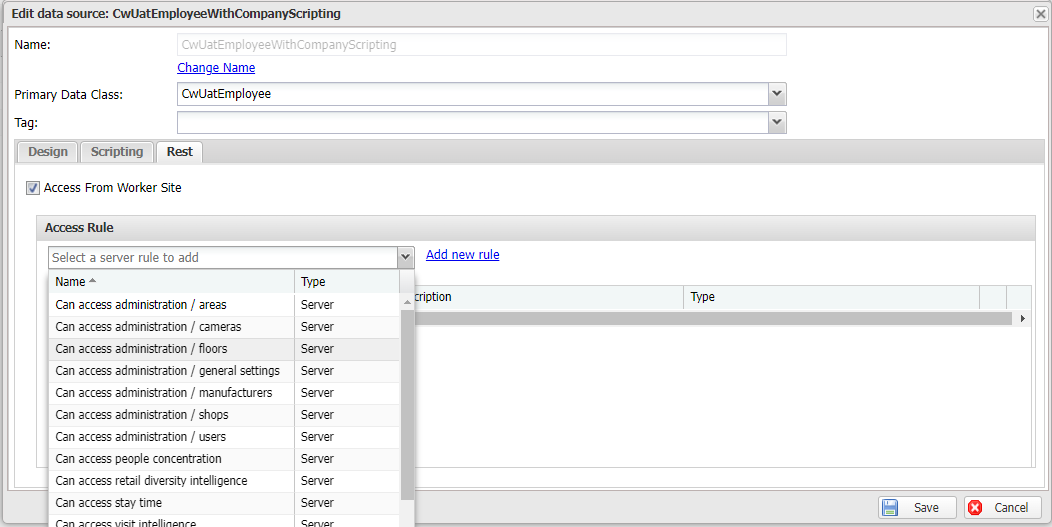
In Casewhere Admin, navigate to Data Sources to create, edit, and manage data sources like any product resource.
Data source editor
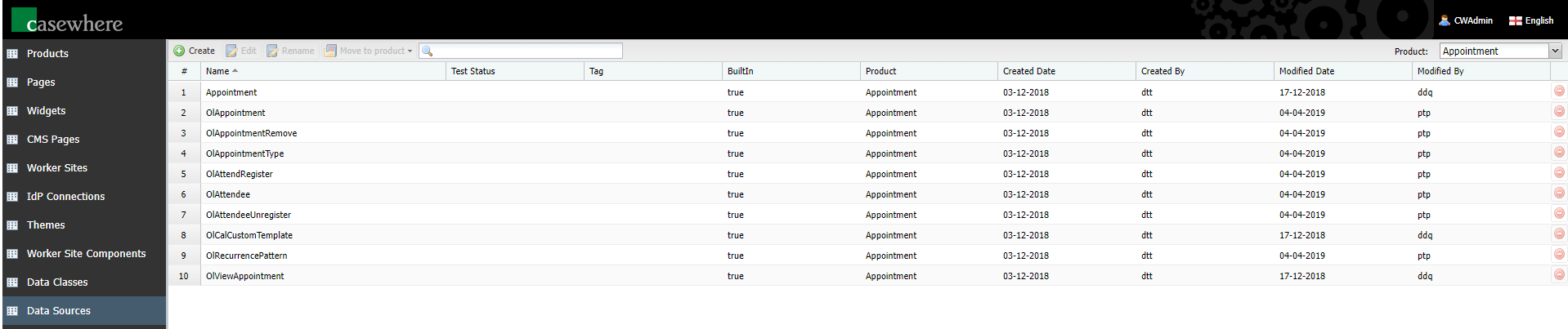
Casewhere provides an editor to design and configure data sources.
General information
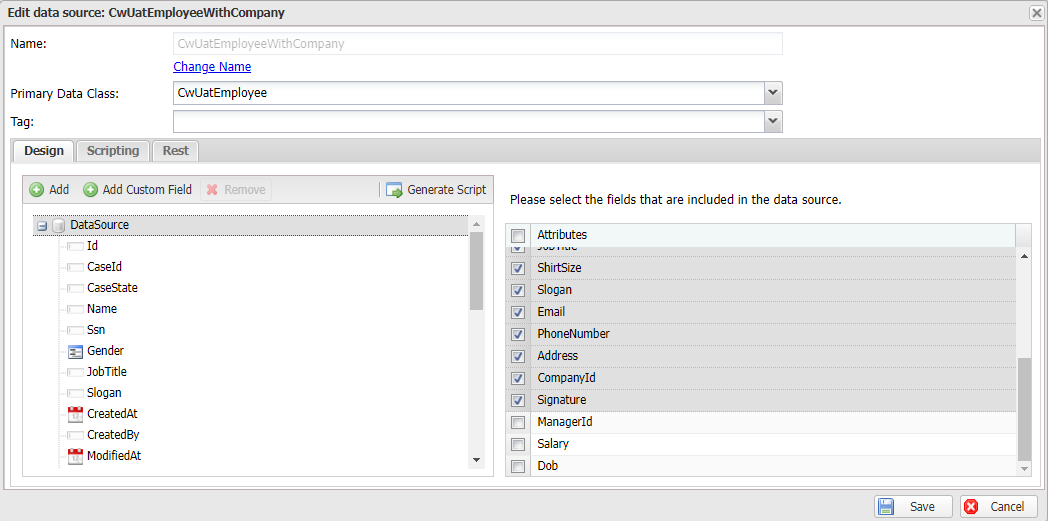
Name: Data source name must be unique
Primary Data Class: You must select a primary data class for the data source. From here, you can link to different related data classes to build a rich data source
Tags: Tags are used to facilitate searching and resource management
Design data source
Click on the data node  to select what to include in the data source output. Note that a data source can have multiple data nodes; each represents a data class. The root node represents the primary data class.
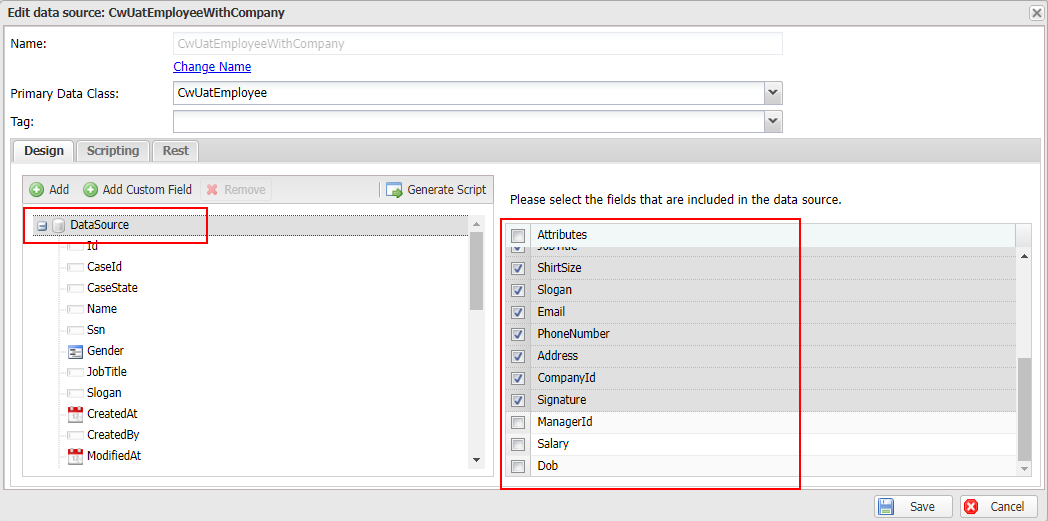
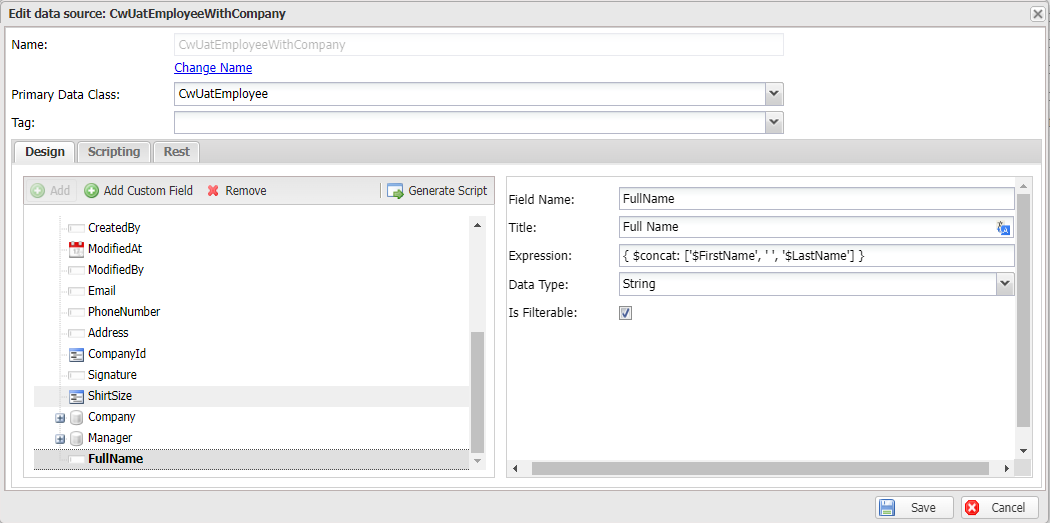
Click on the field node to edit. You can easily see that the field icon reflects the field data type.
- FieldName: The name of the data class attribute. You can only edit the field name for custom fields
- Title: The title of the field shown on UI. Casewhere accepts a text resource key here
- Data Type: The data attribute type. You can only edit for custom fields
- Is Filterable: Determine if the data consumers can filter by this field

You can enrich the data source by joining a data class related to the primary. To do that, click the Add button.
- Related Data Class: Select the data class to join. As you can easily see, the relationships are deternmined by foreign keys.
- Alias: Name of the field holding the information of the joined data class. The default name is the data class name.

You can add a custom field by clicking on Add Custom Field button, and define the field logic by providing a MongoDB expression. The below example shows how to add a custom field for FullName computed from the two base fields FirstName and LastName.
Advanced settings
Scripting
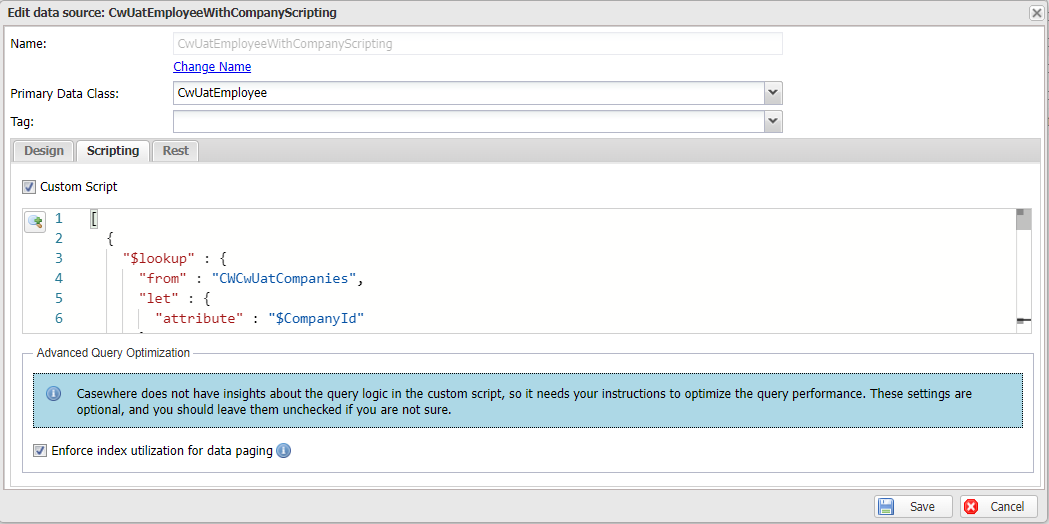
Scripting is useful when you need to calculate aggregate values for the data in a collection, e.g., monthly income, sales per employee, etc. To start building a data source using scripting, navigate to the Scripting tab, enable Custom scripting. After that, define the aggregation pipeline using MongoDB Aggregation Framework. Click here to learn more about scripting data source.
REST
It's possible for frontend components in worker sites to query the data source directly over HTTP. To enable this, navigate to the Security tab and turn on Access From Worker Site. You can protect the data source by specifying a Worker Site Access Rule — see access rules. Click here to learn how to use RESTful data sources in Casewhere.